> ## Documentation Index
> Fetch the complete documentation index at: https://docs.sudocode.ai/llms.txt
> Use this file to discover all available pages before exploring further.
# Quick Start
> Welcome to sudocode!
This quickstart guide will augment your agent-coding experience in just a few minutes.
By the end, you'll be creating specs and issues through your AI agent, with an optional web UI for visualization.
## Step 1: Install sudocode
```bash theme={null}
npm install -g sudocode
```
## Step 2: Initialize project
```bash theme={null}
cd your-project
sudocode init
```
## Step 3: Configure your agent to use sudocode
Set up the sudocode MCP integration with your AI agent.
**Version requirement:** Make sure you're running an up to date version of Claude Code.
Check your version:
```bash theme={null}
claude --version
```
If your version is lower than 2.0.35, update Claude Code:
```bash theme={null}
claude update
```
```bash theme={null}
claude plugin marketplace add sudocode-ai/sudocode
claude plugin install sudocode
```
```
✓ Added sudocode-ai/sudocode to plugin marketplace
✓ Installed sudocode plugin
✓ MCP server configured
```
Start Claude Code and test the integration:
```bash theme={null}
claude
```
Then ask Claude:
```
Can you create a "Hello World" issue?
```
If you see Claude using tools like `plugin:sudocode:sudocode - upsert_issue`, the setup is working!
Claude Code is now configured with sudocode! The plugin automatically handles MCP server configuration and working directory detection.
Add the sudocode MCP server to Codex:
```bash theme={null}
codex mcp add sudocode-mcp -- sudocode-mcp
```
Test that sudocode is working:
```bash theme={null}
codex "create me a hello world issue"
```
If the setup is working, you'll see Codex use the sudocode MCP tools to create the issue:
```
• Called sudocode-mcp.upsert_issue({"title":"Hello World example","description":"Create a simple Hello World program or script and include basic run instructions.","status":"open","priority":3})
└ {"id": "i-5hio", "title": "Hello World example", "status": "open"}
```
Codex is now configured with sudocode!
Cursor CLI uses an MCP configuration file in the `.cursor` directory of your project root.
In your project root directory, create a `.cursor` directory if it doesn't exist:
```bash theme={null}
mkdir -p .cursor
```
Open or create `.cursor/mcp.json` and add the following configuration:
```json theme={null}
{
"mcpServers": {
"sudocode-mcp": {
"command": "sudocode-mcp"
}
}
}
```
If you already have other MCP servers configured, just add the `"sudocode-mcp"` entry inside the existing `"mcpServers"` object.
Note, this step is only relevant if you want to communicate with sudocode inside of the cursor IDE, in addition to the CLI.
After creating the configuration, enable the MCP server in Cursor:
**Option A: Click Enable (when prompted)**
When Cursor detects the new MCP configuration, an **Enable** button will appear on the left side. Click it to activate the sudocode MCP server.
 **Option B: Enable via Settings**
Alternatively, you can manually enable the MCP server:
1. Go to **Cursor > Settings > Cursor Settings**
2. Enable the MCP server
**Option B: Enable via Settings**
Alternatively, you can manually enable the MCP server:
1. Go to **Cursor > Settings > Cursor Settings**
2. Enable the MCP server
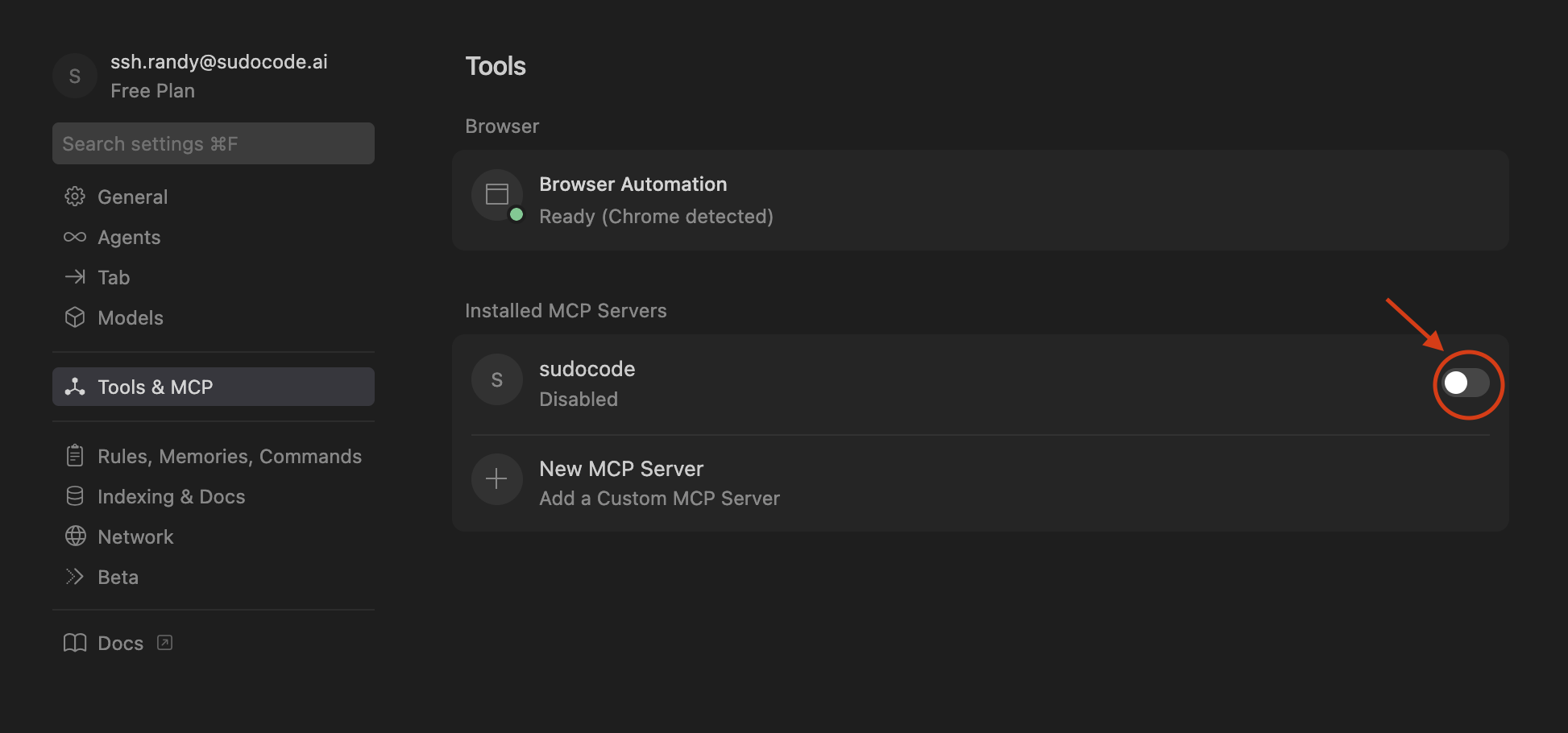 Restart may be required to see the MCP Server under the list of tools! Once you enable the MCP server, it will be active immediately.
Test that sudocode is working via the Cursor CLI:
```bash theme={null}
cursor-agent agent create me a hello world issue
```
If the setup is working, you'll see Cursor use the sudocode MCP tools:
```
sudocode-mcp: upsert_issue(
{
"title": "Create hello world example",
"description": "Add a minimal hello world example (text output) and ensure it can be executed easily from the repository.\n\nAcceptance:\n- A new hello world entry point exists and prints a greeting.\n- Include simple instructions to run it.",
"priority": 3,
"tags": [
"docs",
"example",
"hello-world"
],
"status": "open"
}
)
```
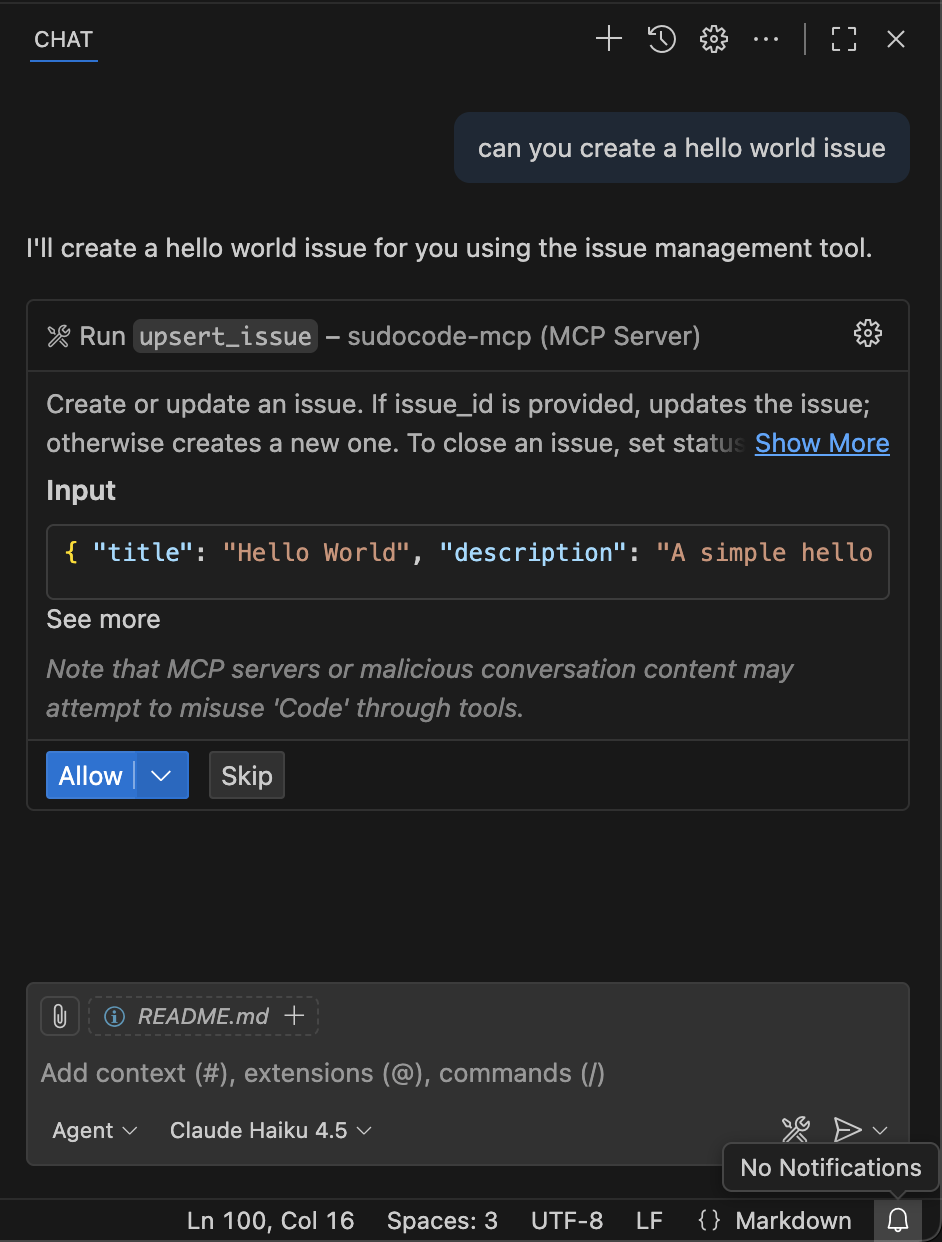
If you want to use sudocode within the Cursor IDE (not just the CLI), you can test it by asking Cursor to create an issue:
```
Can you create a "Hello World" issue using sudocode?
```
If the setup is working, you'll see Cursor use the sudocode MCP tools:
Restart may be required to see the MCP Server under the list of tools! Once you enable the MCP server, it will be active immediately.
Test that sudocode is working via the Cursor CLI:
```bash theme={null}
cursor-agent agent create me a hello world issue
```
If the setup is working, you'll see Cursor use the sudocode MCP tools:
```
sudocode-mcp: upsert_issue(
{
"title": "Create hello world example",
"description": "Add a minimal hello world example (text output) and ensure it can be executed easily from the repository.\n\nAcceptance:\n- A new hello world entry point exists and prints a greeting.\n- Include simple instructions to run it.",
"priority": 3,
"tags": [
"docs",
"example",
"hello-world"
],
"status": "open"
}
)
```
If you want to use sudocode within the Cursor IDE (not just the CLI), you can test it by asking Cursor to create an issue:
```
Can you create a "Hello World" issue using sudocode?
```
If the setup is working, you'll see Cursor use the sudocode MCP tools:
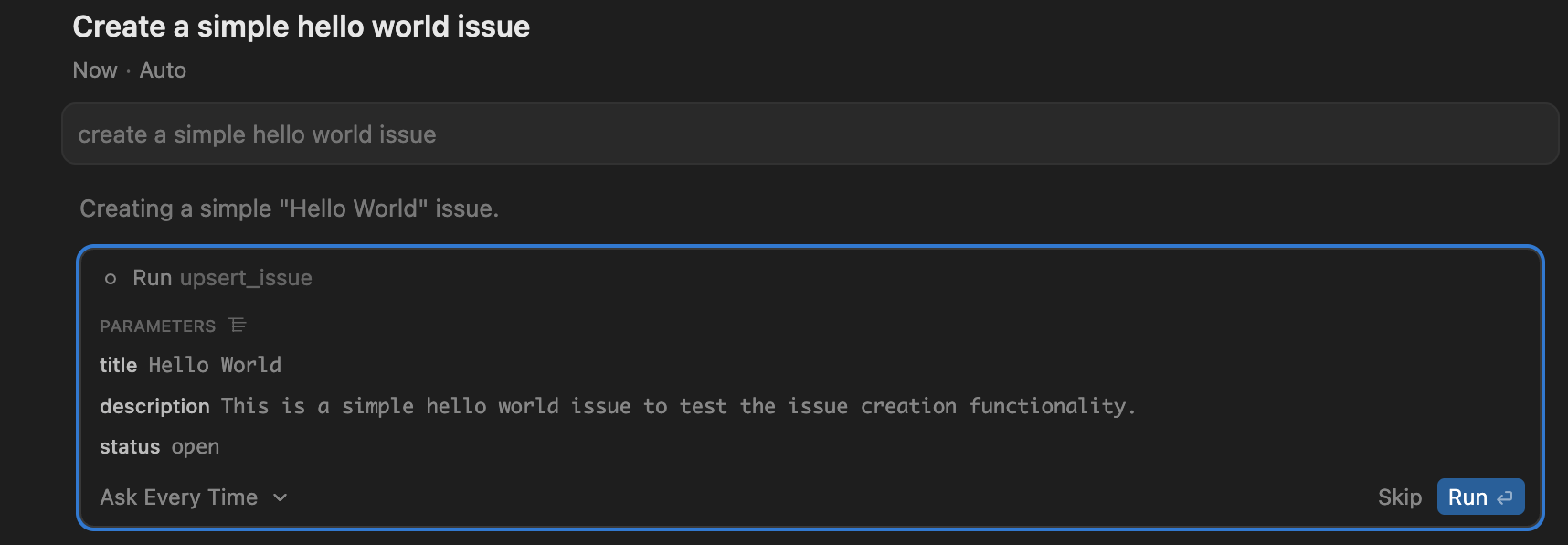 Cursor is now configured with sudocode! The MCP server will automatically run when you use sudocode tools in Cursor.
Start the Copilot CLI:
```bash theme={null}
copilot
```
In the Copilot CLI, run:
```
/mcp
```
This will open the MCP server configuration screen:
```
Add New MCP Server
Server Name:
Unique name for this MCP server
╭──────────────────────────────────────────────────────────────────╮
│ │
╰──────────────────────────────────────────────────────────────────╯
Server Type:
Press 1 for Local, 2 for HTTP, 3 for SSE
[1] Local [2] HTTP [3] SSE
Command:
Command to start the server (e.g., python -m my_server)
╭──────────────────────────────────────────────────────────────────╮
╰──────────────────────────────────────────────────────────────────╯
Environment Variables:
Path is automatically inherited. All other environment variables must be configured
╭──────────────────────────────────────────────────────────────────╮
╰──────────────────────────────────────────────────────────────────╯
Tools:
Tools to include: "*" for all, or comma-separated list (no quotes needed)
╭──────────────────────────────────────────────────────────────────╮
│* │
╰──────────────────────────────────────────────────────────────────╯
Navigation:
• Tab/Shift+Tab: Navigate fields
• Ctrl+S: Save server
• Esc: Cancel
```
Fill in the following:
* **Server Name**: `sudocode-mcp`
* **Server Type**: Select `[1] Local` (default)
* **Command**: `sudocode-mcp`
* **Tools**: `*` (default, for all tools)
Press `Ctrl+S` to save the server configuration.
Test that sudocode is working:
```bash theme={null}
copilot -i "Create a hello world issue"
```
If the setup is working, you'll see a prompt asking to approve the tool call:
```
● upsert_issue
╭────────────────────────────────────────────────────────────────╮
│ upsert_issue │
│ │
│ ╭────────────────────────────────────────────────────────────╮ │
│ │ { │ │
│ │ "title": "Hello World", │ │
│ │ "description": "A simple hello world issue to get │ │
│ │ started.", │ │
│ │ "status": "open" │ │
│ │ } │ │
│ ╰────────────────────────────────────────────────────────────╯ │
│ │
│ Do you want to use this tool? │
│ │
│ ❯ 1. Yes │
│ 2. Yes, and approve tool "upsert_issue" from server │
│ "sudocode-mcp" for the rest of the running session │
│ 3. Yes, and approve all tools from server "sudocode-mcp" │
│ for the rest of the running session │
│ 4. No, and tell Copilot what to do differently (Esc) │
│ │
│ Confirm with number keys or ↑↓ keys and Enter, Cancel with │
│ Esc │
╰────────────────────────────────────────────────────────────────╯
```
GitHub Copilot CLI is now configured with sudocode!
If you want to use sudocode within VS Code (not just the CLI), you can set it up using the Command Palette or by creating a configuration file:
**Method 1: Command Palette (Recommended)**
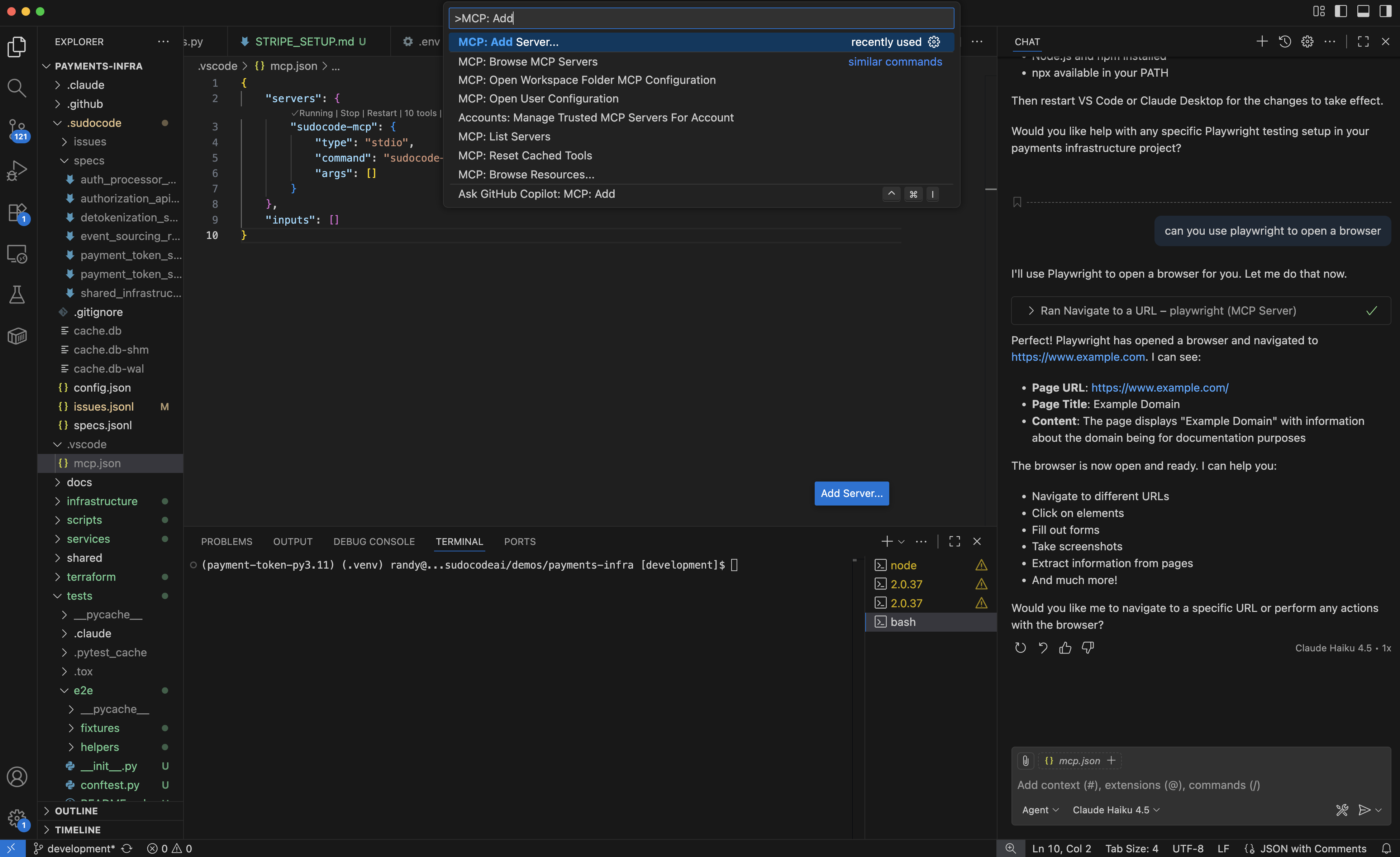
Press `Cmd+Shift+P` (macOS) or `Ctrl+Shift+P` (Windows/Linux) to open the Command Palette.
Type and select:
```
MCP: Add Server
```
Cursor is now configured with sudocode! The MCP server will automatically run when you use sudocode tools in Cursor.
Start the Copilot CLI:
```bash theme={null}
copilot
```
In the Copilot CLI, run:
```
/mcp
```
This will open the MCP server configuration screen:
```
Add New MCP Server
Server Name:
Unique name for this MCP server
╭──────────────────────────────────────────────────────────────────╮
│ │
╰──────────────────────────────────────────────────────────────────╯
Server Type:
Press 1 for Local, 2 for HTTP, 3 for SSE
[1] Local [2] HTTP [3] SSE
Command:
Command to start the server (e.g., python -m my_server)
╭──────────────────────────────────────────────────────────────────╮
╰──────────────────────────────────────────────────────────────────╯
Environment Variables:
Path is automatically inherited. All other environment variables must be configured
╭──────────────────────────────────────────────────────────────────╮
╰──────────────────────────────────────────────────────────────────╯
Tools:
Tools to include: "*" for all, or comma-separated list (no quotes needed)
╭──────────────────────────────────────────────────────────────────╮
│* │
╰──────────────────────────────────────────────────────────────────╯
Navigation:
• Tab/Shift+Tab: Navigate fields
• Ctrl+S: Save server
• Esc: Cancel
```
Fill in the following:
* **Server Name**: `sudocode-mcp`
* **Server Type**: Select `[1] Local` (default)
* **Command**: `sudocode-mcp`
* **Tools**: `*` (default, for all tools)
Press `Ctrl+S` to save the server configuration.
Test that sudocode is working:
```bash theme={null}
copilot -i "Create a hello world issue"
```
If the setup is working, you'll see a prompt asking to approve the tool call:
```
● upsert_issue
╭────────────────────────────────────────────────────────────────╮
│ upsert_issue │
│ │
│ ╭────────────────────────────────────────────────────────────╮ │
│ │ { │ │
│ │ "title": "Hello World", │ │
│ │ "description": "A simple hello world issue to get │ │
│ │ started.", │ │
│ │ "status": "open" │ │
│ │ } │ │
│ ╰────────────────────────────────────────────────────────────╯ │
│ │
│ Do you want to use this tool? │
│ │
│ ❯ 1. Yes │
│ 2. Yes, and approve tool "upsert_issue" from server │
│ "sudocode-mcp" for the rest of the running session │
│ 3. Yes, and approve all tools from server "sudocode-mcp" │
│ for the rest of the running session │
│ 4. No, and tell Copilot what to do differently (Esc) │
│ │
│ Confirm with number keys or ↑↓ keys and Enter, Cancel with │
│ Esc │
╰────────────────────────────────────────────────────────────────╯
```
GitHub Copilot CLI is now configured with sudocode!
If you want to use sudocode within VS Code (not just the CLI), you can set it up using the Command Palette or by creating a configuration file:
**Method 1: Command Palette (Recommended)**
Press `Cmd+Shift+P` (macOS) or `Ctrl+Shift+P` (Windows/Linux) to open the Command Palette.
Type and select:
```
MCP: Add Server
```
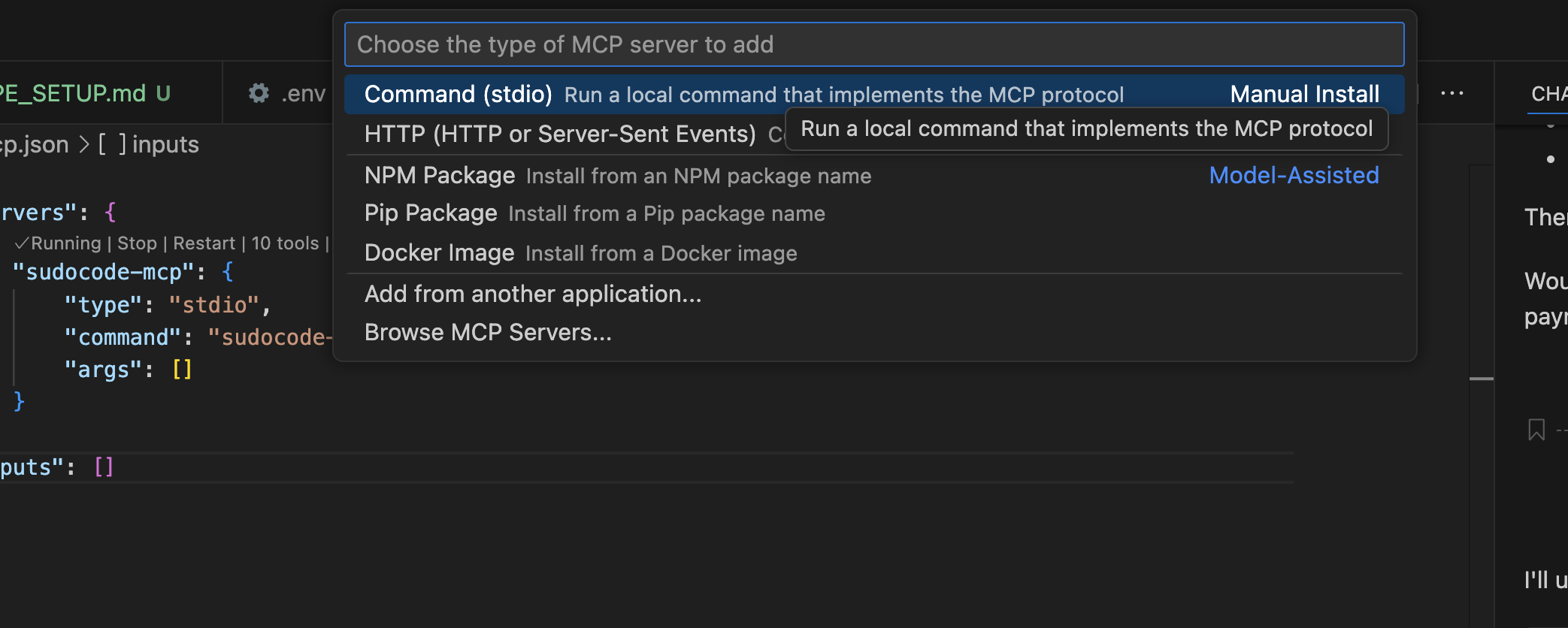
 When prompted for the server type, select **Command (stdio)**.
 Type the command:
```
sudocode-mcp
```
Type the command:
```
sudocode-mcp
```
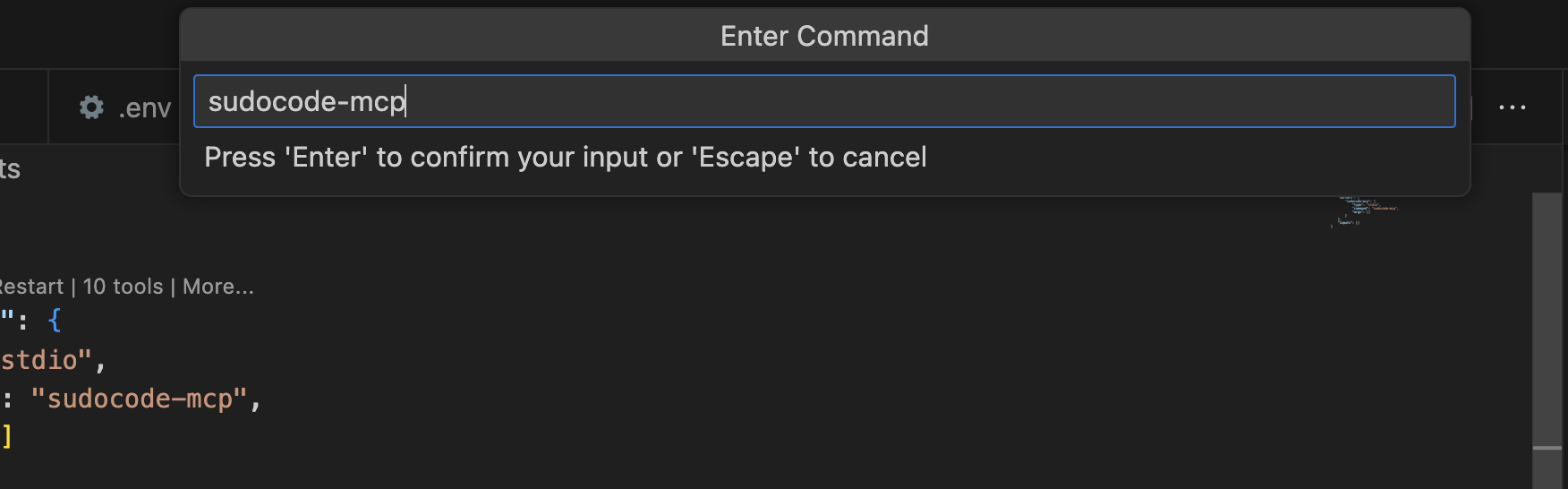 Give it a name (we recommend `sudocode-mcp`).
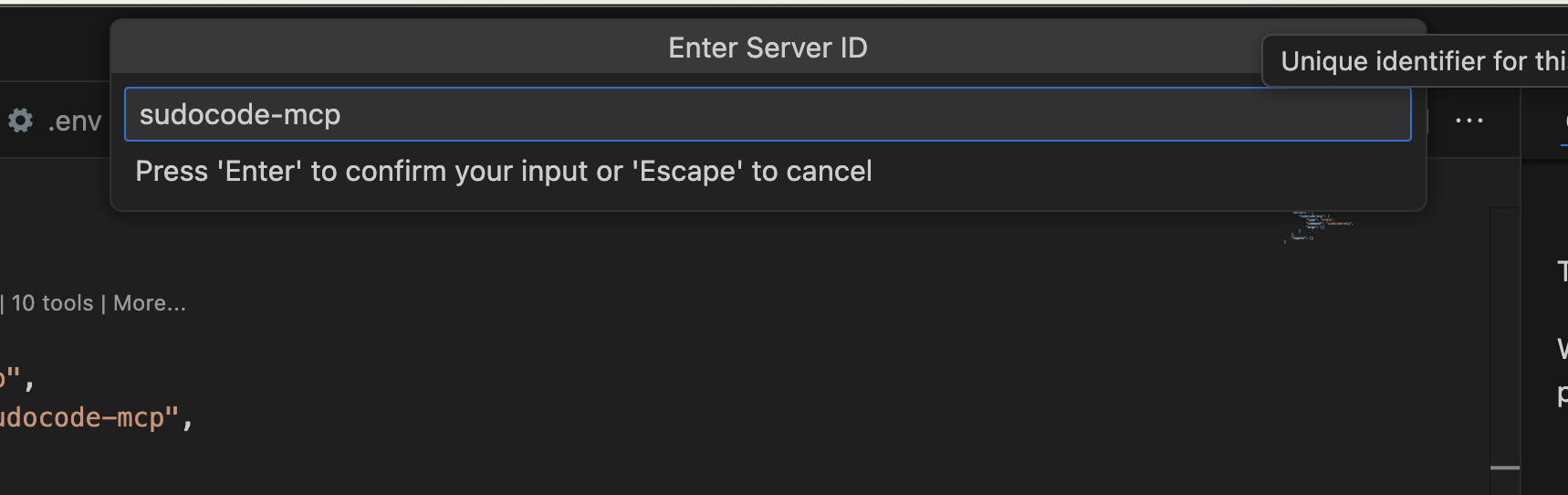 When prompted to choose between Global or Workspace, select **Workspace**.
Make sure to select **Workspace** (not Global) so the MCP server runs in your project directory.
When prompted to choose between Global or Workspace, select **Workspace**.
Make sure to select **Workspace** (not Global) so the MCP server runs in your project directory.
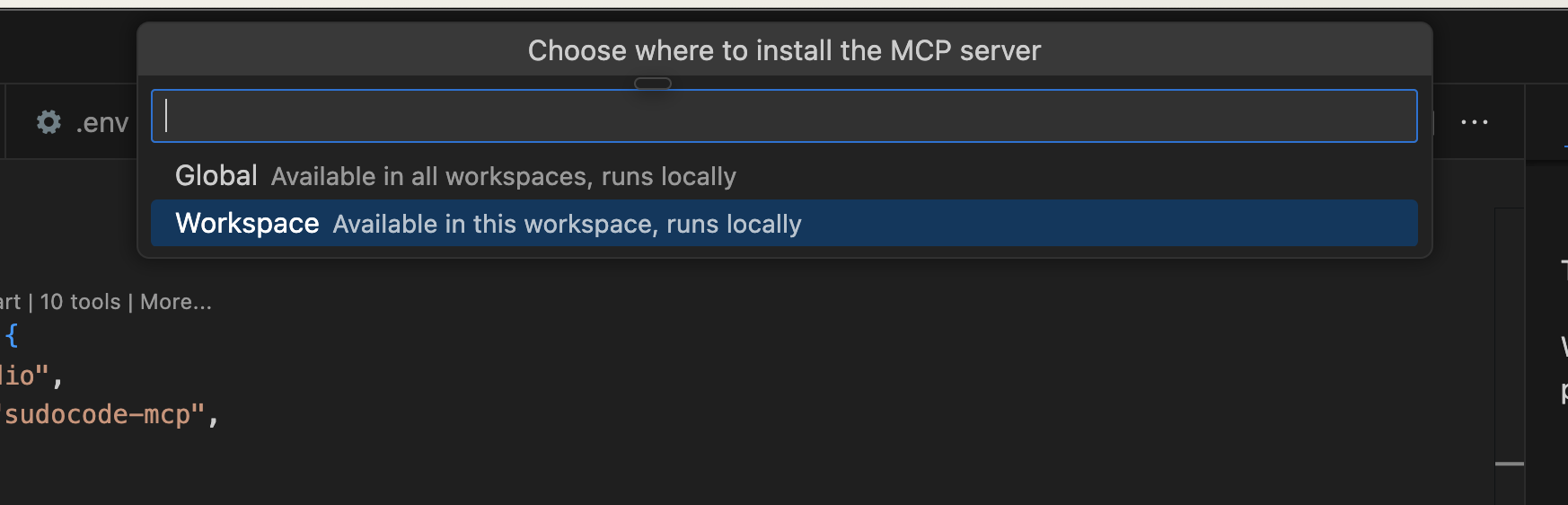 Check that `.vscode/mcp.json` was created in your project root:
```bash theme={null}
cat .vscode/mcp.json
```
You should see something like this:
```json theme={null}
{
"servers": {
"sudocode-mcp": {
"type": "stdio",
"command": "sudocode-mcp",
"args": []
}
},
"inputs": []
}
```
Check that `.vscode/mcp.json` was created in your project root:
```bash theme={null}
cat .vscode/mcp.json
```
You should see something like this:
```json theme={null}
{
"servers": {
"sudocode-mcp": {
"type": "stdio",
"command": "sudocode-mcp",
"args": []
}
},
"inputs": []
}
```
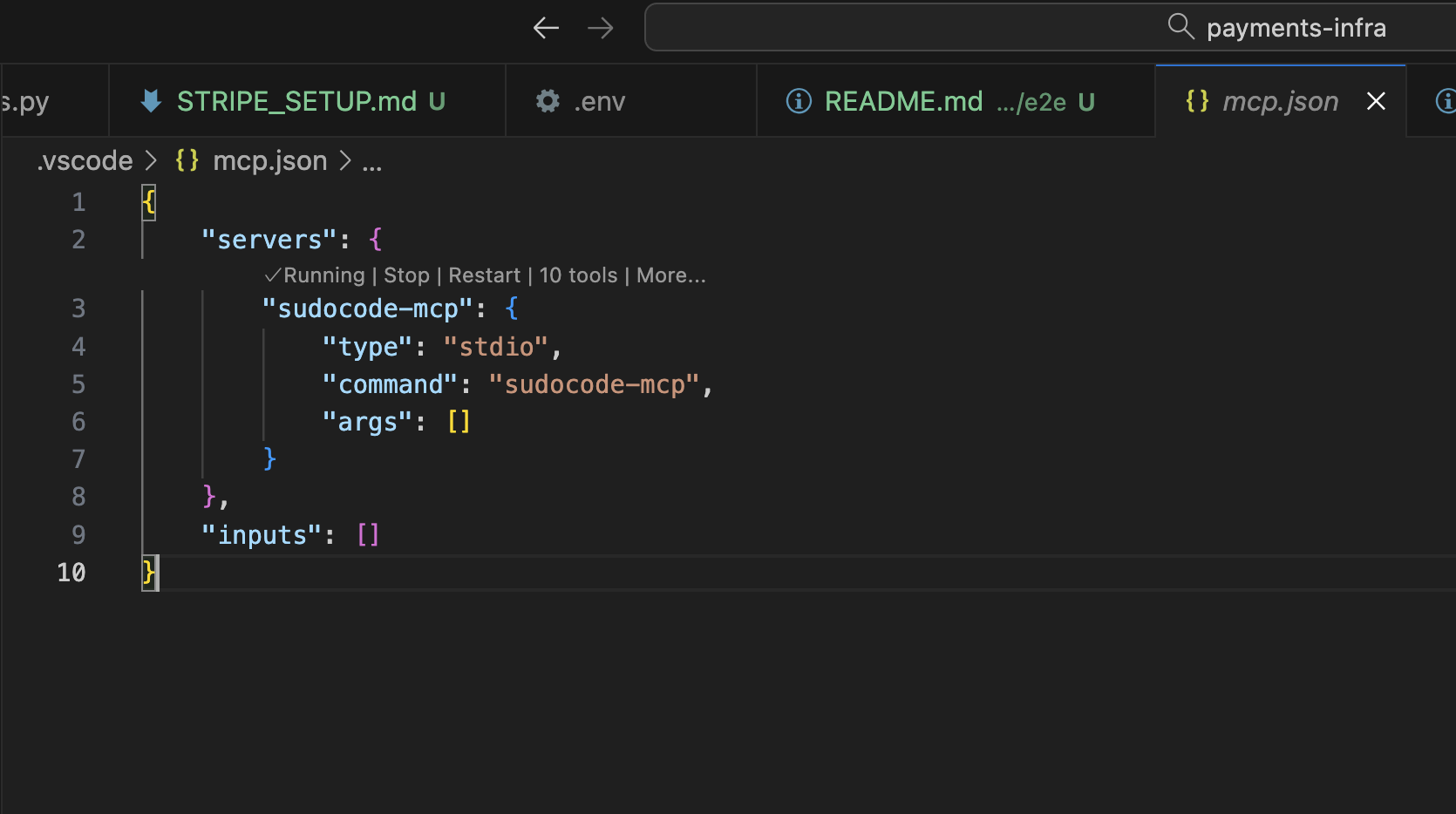 **Method 2: Manual Configuration**
Alternatively, create `.vscode/mcp.json` manually:
```json theme={null}
{
"servers": {
"sudocode-mcp": {
"type": "stdio",
"command": "sudocode-mcp",
"args": []
}
},
"inputs": []
}
```
Then reload VS Code to apply the configuration.
**Verify Setup**
Test that MCP tools are available in VS Code by opening GitHub Copilot and asking:
```
Can you create a "Hello World" issue using sudocode?
```
You should see a tool call from sudocode. You're all set!
**Method 2: Manual Configuration**
Alternatively, create `.vscode/mcp.json` manually:
```json theme={null}
{
"servers": {
"sudocode-mcp": {
"type": "stdio",
"command": "sudocode-mcp",
"args": []
}
},
"inputs": []
}
```
Then reload VS Code to apply the configuration.
**Verify Setup**
Test that MCP tools are available in VS Code by opening GitHub Copilot and asking:
```
Can you create a "Hello World" issue using sudocode?
```
You should see a tool call from sudocode. You're all set!
 ## Step 4: Create a test issue
With the MCP integration configured, you can now use your agent to create and link spec or issue docs as needed. No extra steps required.
**Start a conversation with your agent to define work:**
```
> User: I want to add dark mode support to our app. Can you create
a spec for this?
⏺ Agent: I'll create a spec capturing the dark mode requirements.
⏺ plugin:sudocode:sudocode - upsert_spec (MCP)
(title: "Dark Mode Support",
description: "# Dark Mode Support
## Overview
Add dark mode theming to the application.
## Requirements
- Toggle between light and dark themes
- Persist user preference across sessions
- Respect system-level theme preference
## Open Questions
- Should we support custom accent colors?
- How should we handle third-party component theming?
")
⎿ { "id": "s-4x2k", ... }
⏺ Agent: Created spec s-4x2k. Now let me create an issue to start
implementation.
⏺ plugin:sudocode:sudocode - upsert_issue (MCP)
(title: "Implement dark mode theme toggle",
description: "Add a theme toggle component and implement CSS
custom properties for light/dark themes.
Implements [[s-4x2k]]",
status: "open",
priority: 2)
⎿ { "id": "i-7m3n", ... }
⏺ plugin:sudocode:sudocode - link (MCP)
(from_id: "i-7m3n", to_id: "s-4x2k", type: "implements")
⏺ Agent: Created issue i-7m3n linked to the spec. Ready to start
implementation whenever you are.
```
Your specs and issues are now stored locally in the `sudocode/` directory of your project. You can continue discussing, refining, and breaking down the work entirely through your agent.
## Step 5: Visualize with the web UI (optional)
To get a visual overview of your specs, issues, and their relationships, start the sudocode web server:
```bash theme={null}
sudocode server
```
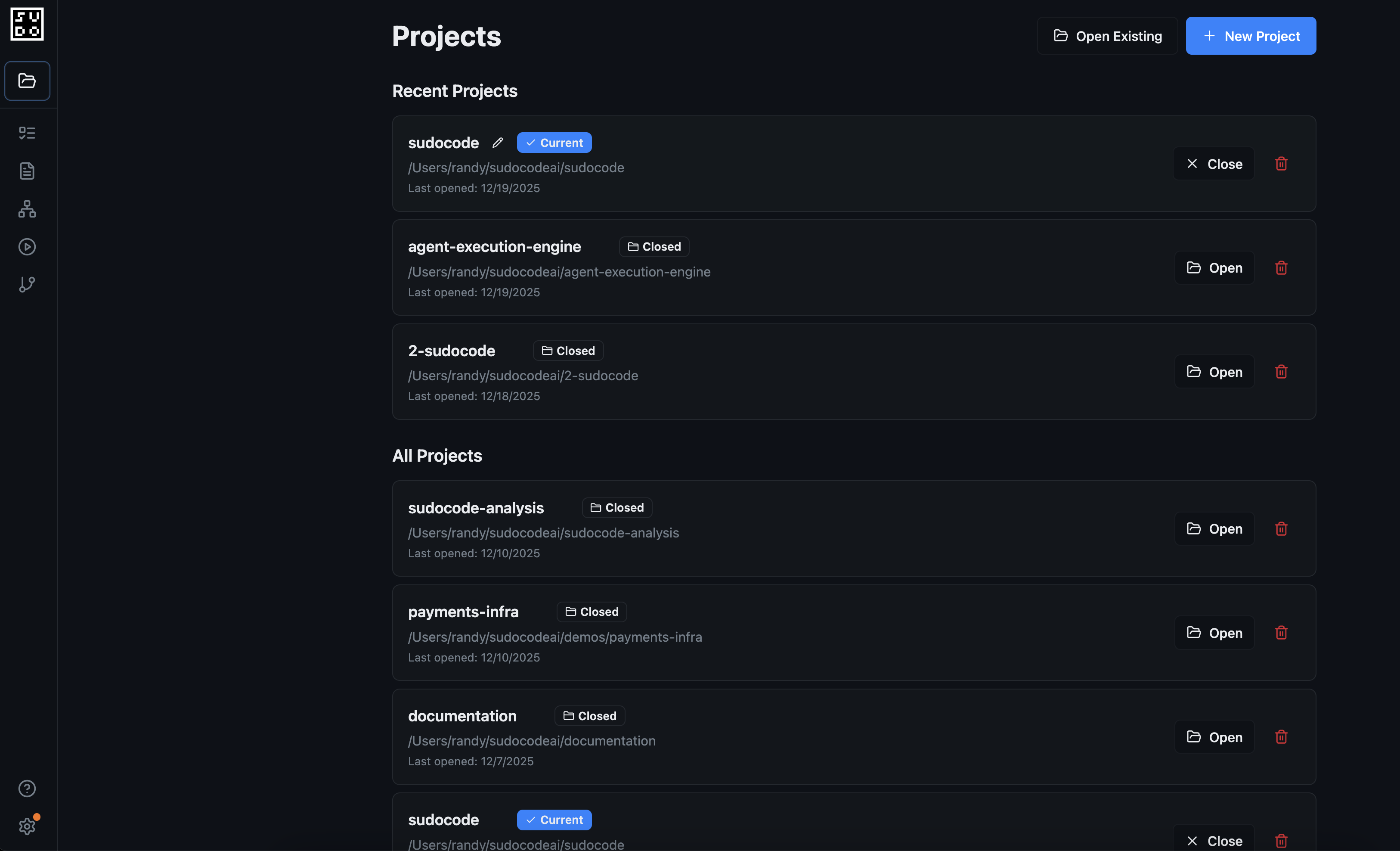
The server will start at `http://localhost:3000`. Navigate there in your browser to see the project selector:
## Step 4: Create a test issue
With the MCP integration configured, you can now use your agent to create and link spec or issue docs as needed. No extra steps required.
**Start a conversation with your agent to define work:**
```
> User: I want to add dark mode support to our app. Can you create
a spec for this?
⏺ Agent: I'll create a spec capturing the dark mode requirements.
⏺ plugin:sudocode:sudocode - upsert_spec (MCP)
(title: "Dark Mode Support",
description: "# Dark Mode Support
## Overview
Add dark mode theming to the application.
## Requirements
- Toggle between light and dark themes
- Persist user preference across sessions
- Respect system-level theme preference
## Open Questions
- Should we support custom accent colors?
- How should we handle third-party component theming?
")
⎿ { "id": "s-4x2k", ... }
⏺ Agent: Created spec s-4x2k. Now let me create an issue to start
implementation.
⏺ plugin:sudocode:sudocode - upsert_issue (MCP)
(title: "Implement dark mode theme toggle",
description: "Add a theme toggle component and implement CSS
custom properties for light/dark themes.
Implements [[s-4x2k]]",
status: "open",
priority: 2)
⎿ { "id": "i-7m3n", ... }
⏺ plugin:sudocode:sudocode - link (MCP)
(from_id: "i-7m3n", to_id: "s-4x2k", type: "implements")
⏺ Agent: Created issue i-7m3n linked to the spec. Ready to start
implementation whenever you are.
```
Your specs and issues are now stored locally in the `sudocode/` directory of your project. You can continue discussing, refining, and breaking down the work entirely through your agent.
## Step 5: Visualize with the web UI (optional)
To get a visual overview of your specs, issues, and their relationships, start the sudocode web server:
```bash theme={null}
sudocode server
```
The server will start at `http://localhost:3000`. Navigate there in your browser to see the project selector:
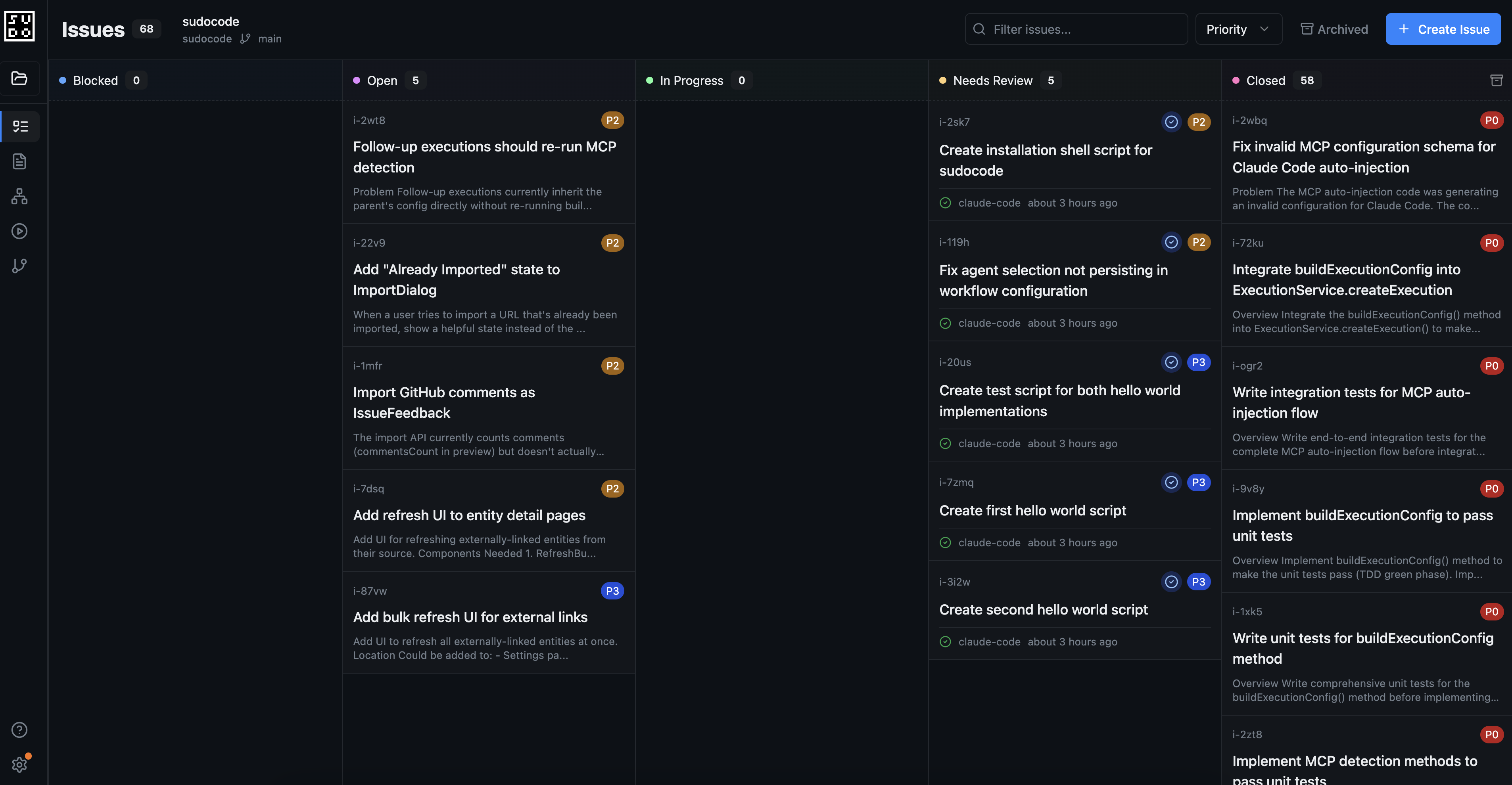
 After selecting your project, you'll see the issue board — a visual hub for tracking the specs and issues you created through your agent:
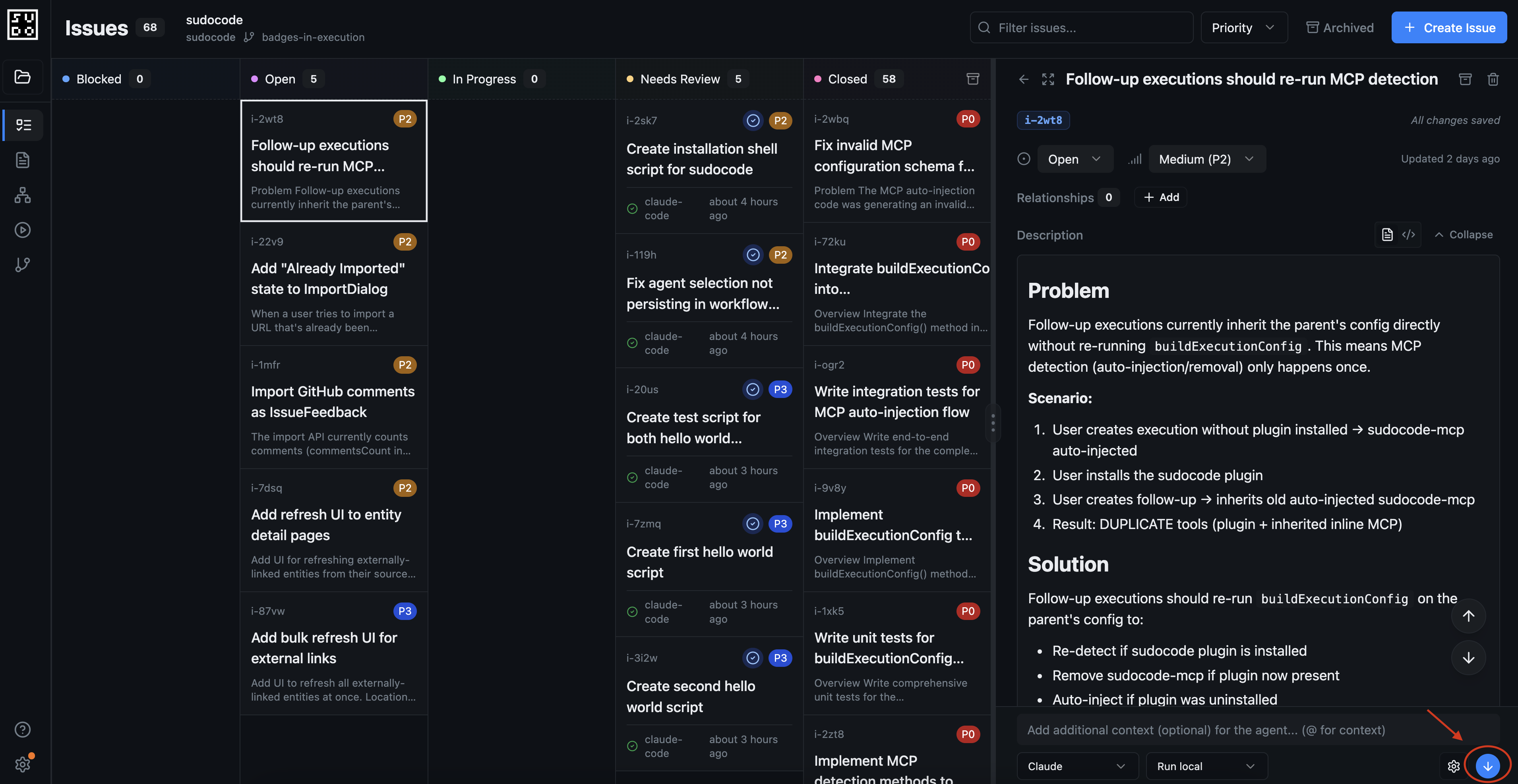
 From the web UI you can also create and edit specs and issues, run issues, and monitor execution sessions:
 ## Next Steps
Now that you've set up sudocode and created your first spec and issue, explore these guides to learn more:
See how sudocode fits into a normal coding session
Track a bug investigation as a chain of issues
Plan and implement features with specs and issues
Learn different methods for creating and organizing issues
Write specifications that guide your AI agents
Explore all features of the sudocode web interface
## Next Steps
Now that you've set up sudocode and created your first spec and issue, explore these guides to learn more:
See how sudocode fits into a normal coding session
Track a bug investigation as a chain of issues
Plan and implement features with specs and issues
Learn different methods for creating and organizing issues
Write specifications that guide your AI agents
Explore all features of the sudocode web interface