

Prerequisites
Before setting up any agent, make sure you have:- sudocode CLI installed globally (
npm install -g sudocode) - A sudocode project initialized (
sudocode init)
If you haven’t completed these prerequisites, see the MCP Server Quick Setup guide first.
Select Your Agent
Choose your AI assistant to see specific setup instructions:Claude Code
Official Anthropic CLI with plugin marketplace
Codex
OpenAI’s AI coding assistant
Cursor
AI-powered code editor
VS Code
Visual Studio Code with MCP extensions
Other MCP Agents
Generic MCP configuration for any compatible agent
Claude Code
Claude Code has the simplest setup thanks to the plugin marketplace:Version requirement: Make sure you’re running Claude Code version 2.0.35 or higher.Check your version:If your version is lower than 2.0.35, update Claude Code:
1
Add sudocode plugin from marketplace
Expected output
Expected output
2
Install the plugin
Expected output
Expected output
3
Verify installation
Start Claude Code and test the integration:Then ask Claude:If you see Claude using tools like
plugin:sudocode:sudocode - upsert_issue, the setup is working!Claude Code is now configured with sudocode! The plugin automatically handles MCP server configuration and working directory detection.
Codex
Codex is not currently supported, but we will support it soon!If you’d like to see Codex support prioritized, please open a discussion to let us know. We’re actively working on expanding agent compatibility.
Cursor
Cursor uses an MCP configuration file in the.cursor directory of your project root.
Setup the MCP Server
1
Create .cursor directory
In your project root directory, create a
.cursor directory if it doesn’t exist:2
Create or edit .cursor/mcp.json
Open or create
.cursor/mcp.json and add the following configuration:If you already have other MCP servers configured, just add the
"sudocode" entry inside the existing "mcpServers" object.3
Save the file
Save the
.cursor/mcp.json file.Enable the MCP Server
After creating the configuration (using either option above), you need to enable the MCP server in Cursor: Option A: Click Enable (when prompted) When Cursor detects the new MCP configuration, an Enable button will appear on the left side. Click it to activate the sudocode MCP server.
- Go to Cursor > Settings > Cursor Settings
- Enable the MCP server
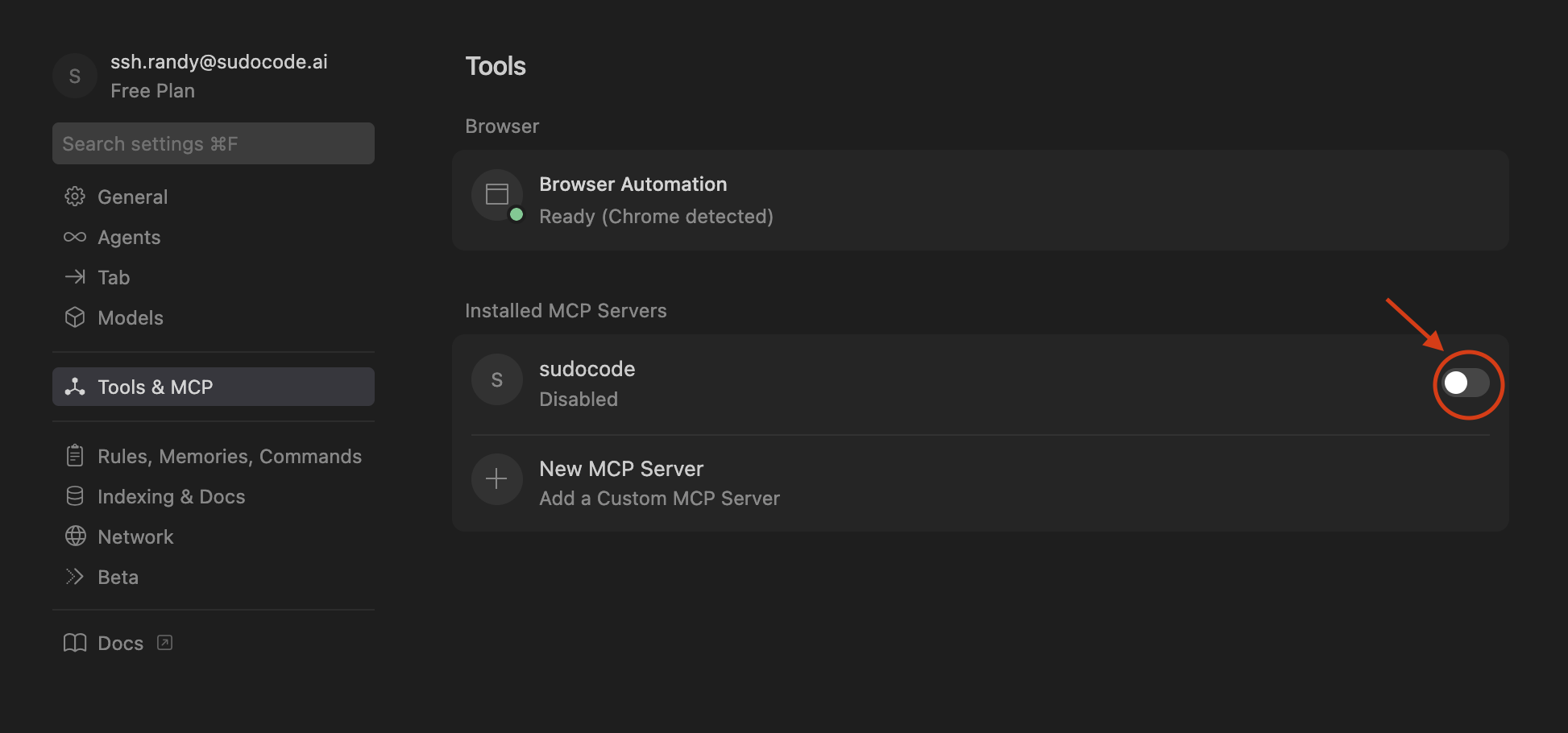
Restart may be required, to see the MCP Server under the list of tools! Once you enable the MCP server, it will be active immediately.
Verify Setup
Test that sudocode is working in Cursor by asking it to create an issue: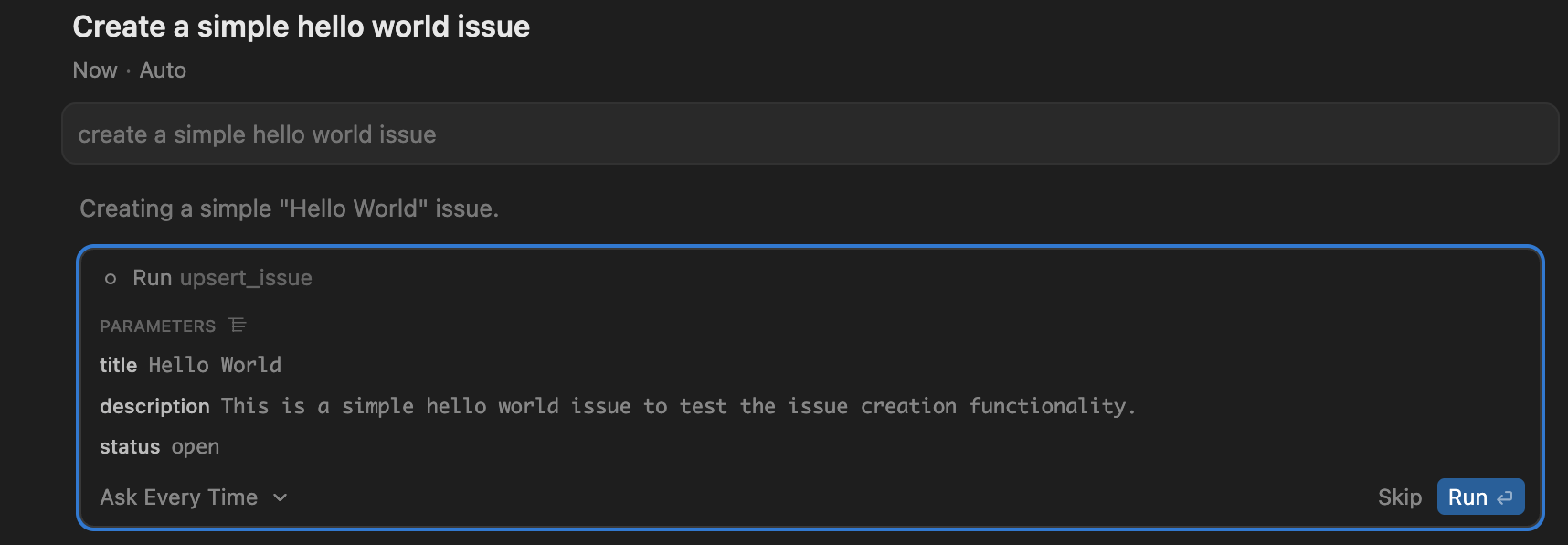
Cursor is now configured with sudocode! The MCP server will automatically run when you use sudocode tools in Cursor.
VS Code
VS Code supports MCP through workspace configuration. You can set it up using the Command Palette or by creating a configuration file:Setup the MCP Server
Method 1: Command Palette (Recommended)
Method 1: Command Palette (Recommended)
1
Open Command Palette
Press 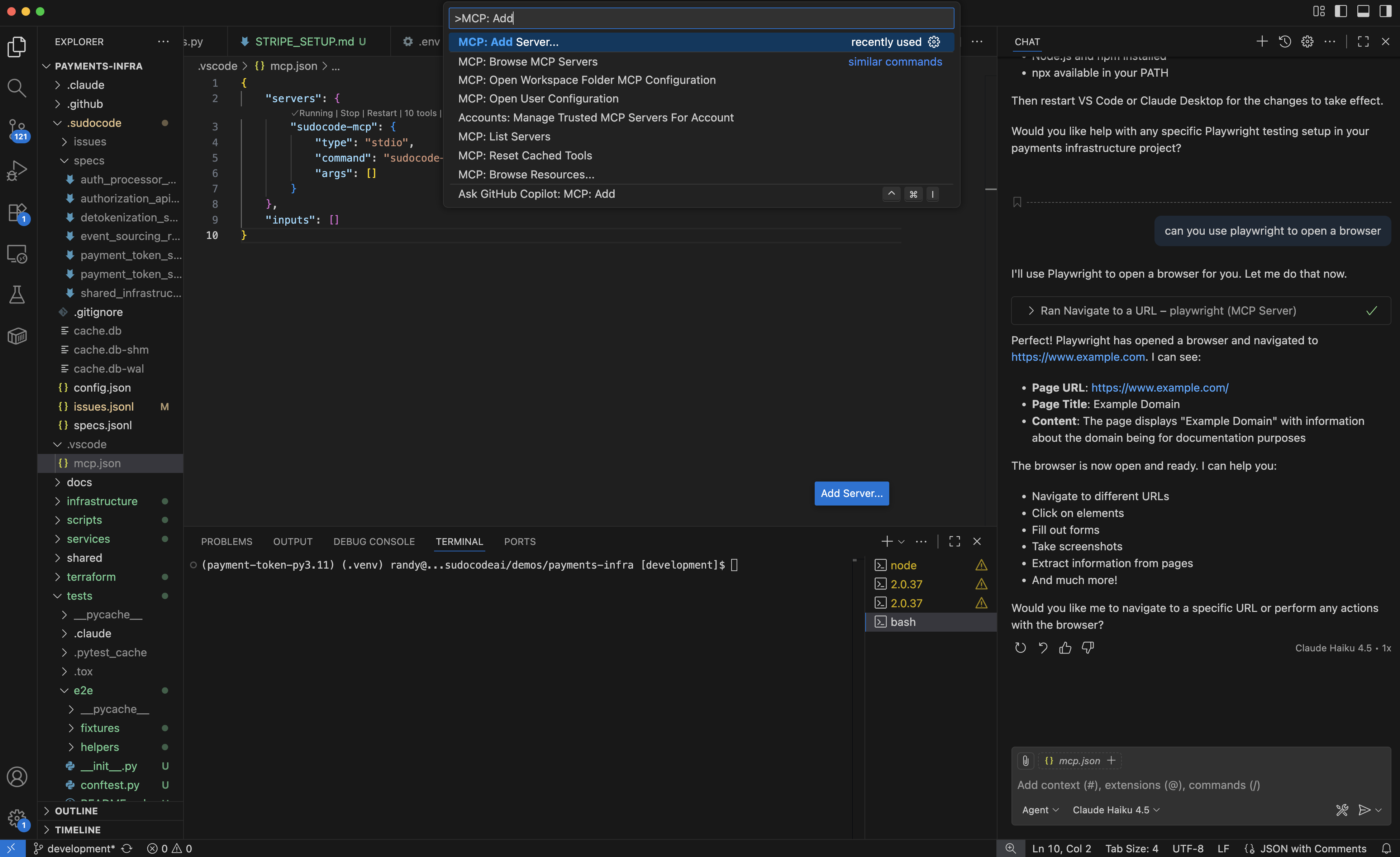
Cmd+Shift+P (macOS) or Ctrl+Shift+P (Windows/Linux) to open the Command Palette.Type and select:2
Select Command (stdio)
When prompted for the server type, select Command (stdio).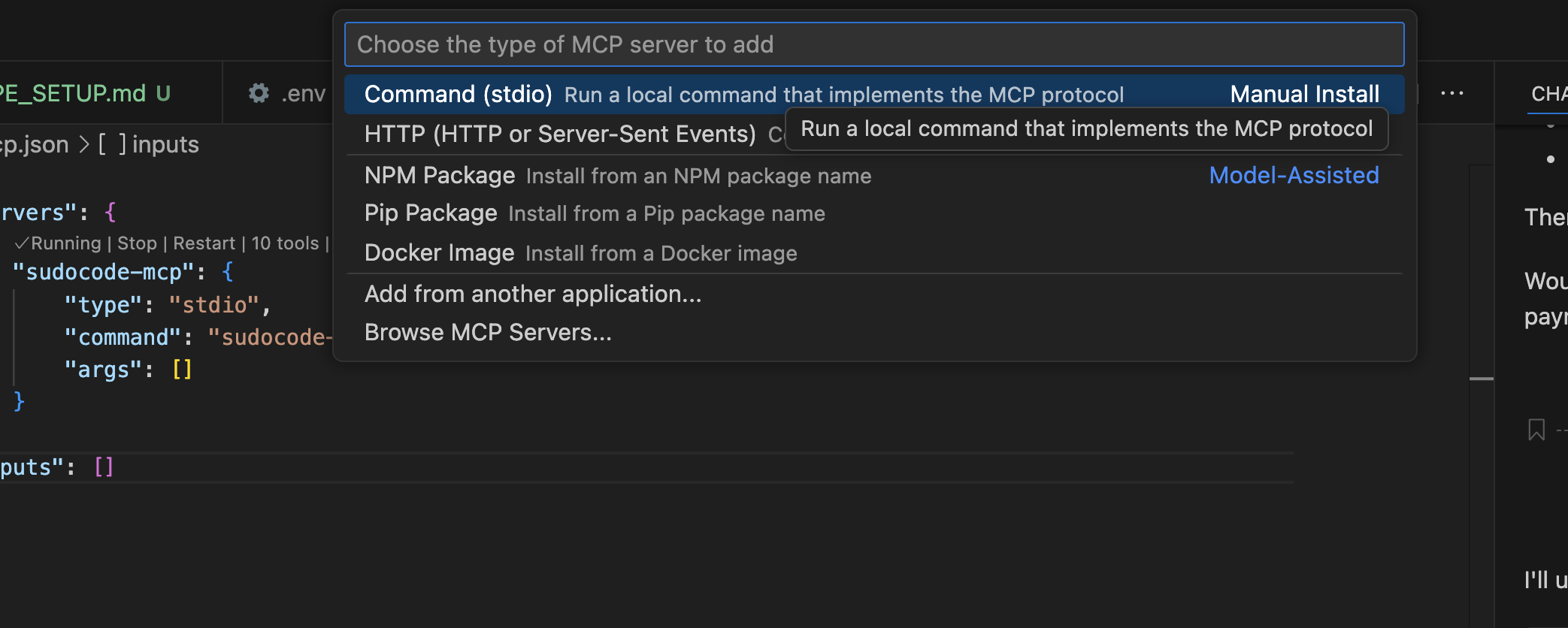
3
Enter command
Type the command: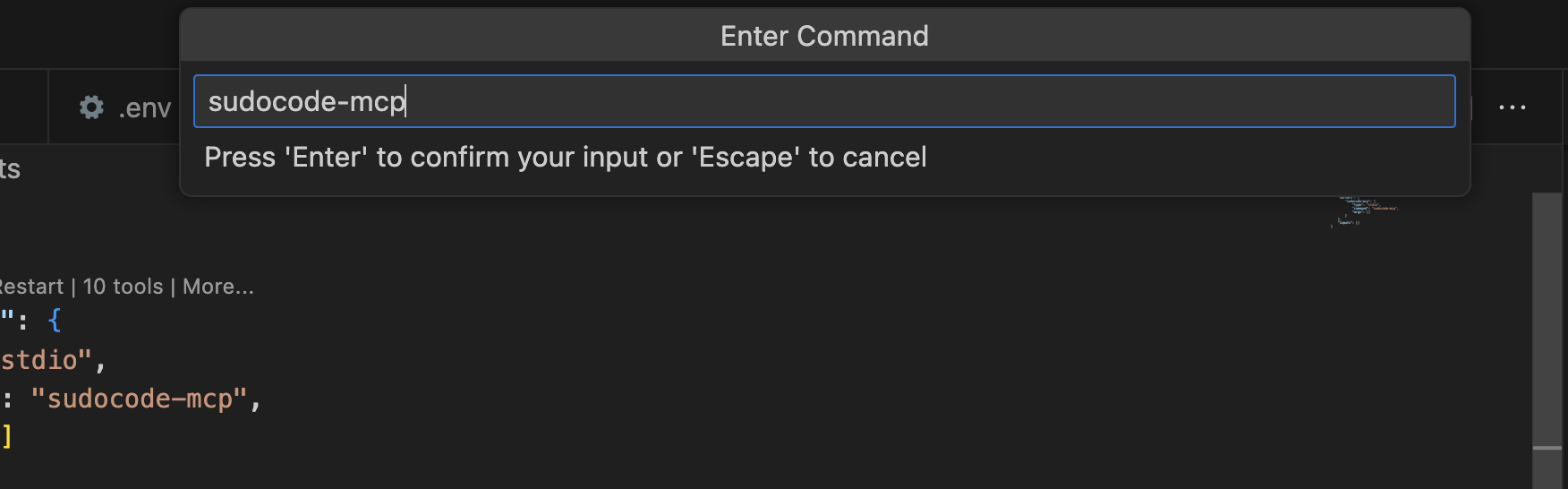
4
Name the server
Give it a name (we recommend 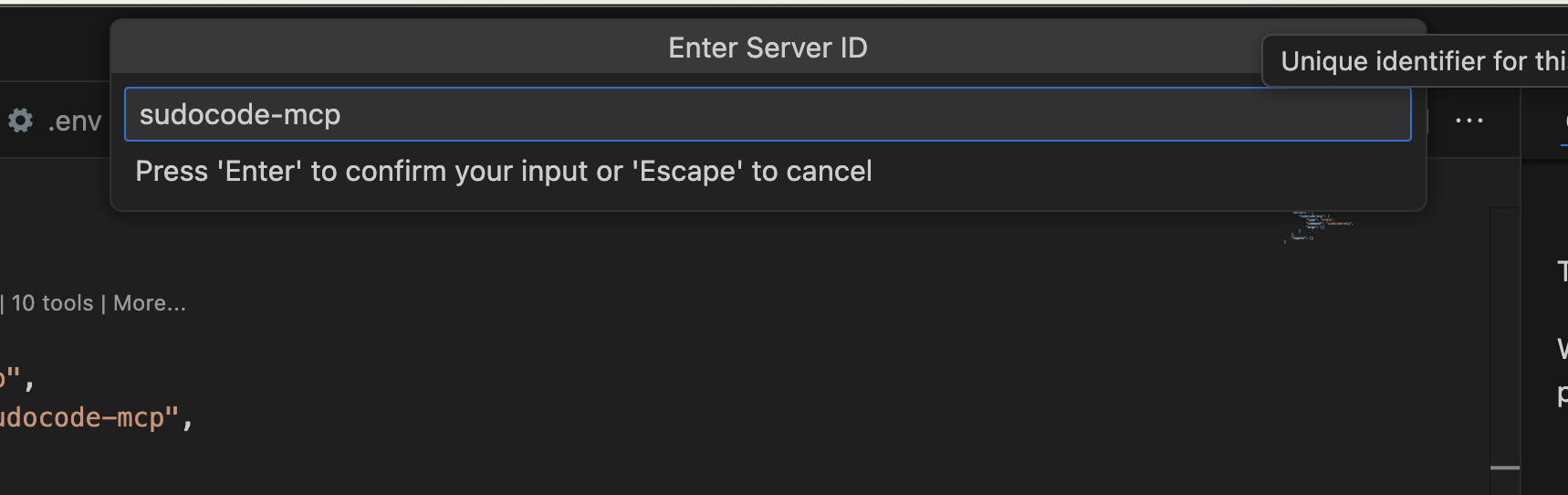
sudocode-mcp).5
Choose Workspace
When prompted to choose between Global or Workspace, select Workspace.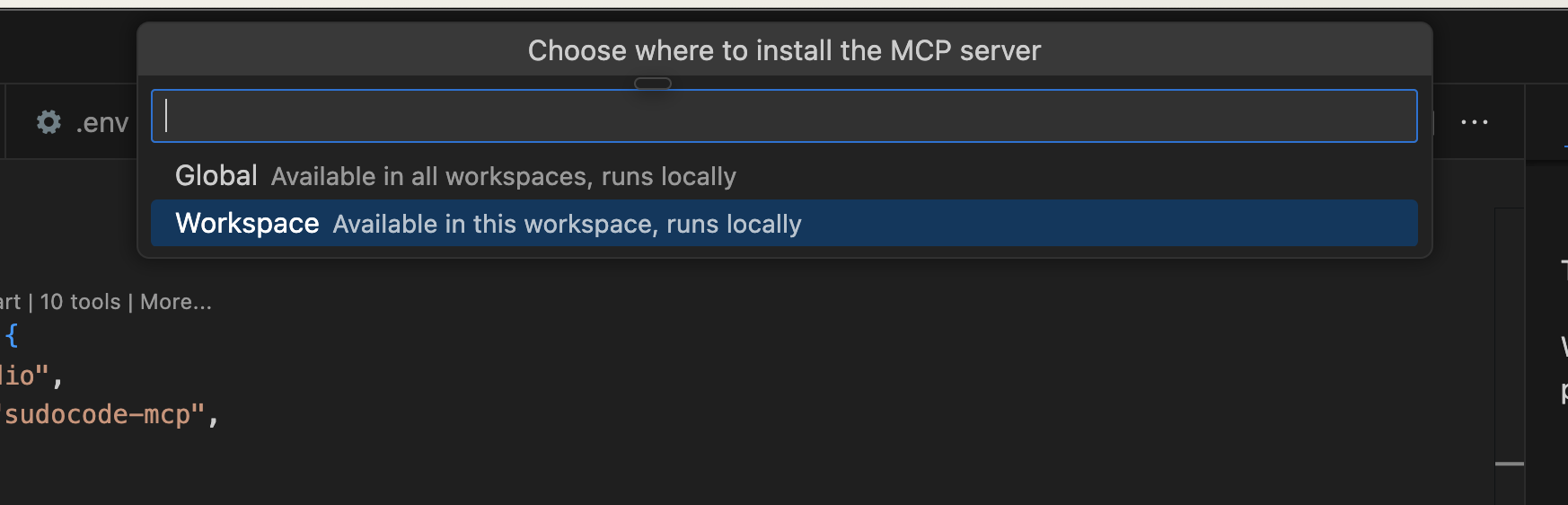
6
Verify configuration
Check that You should see something like this: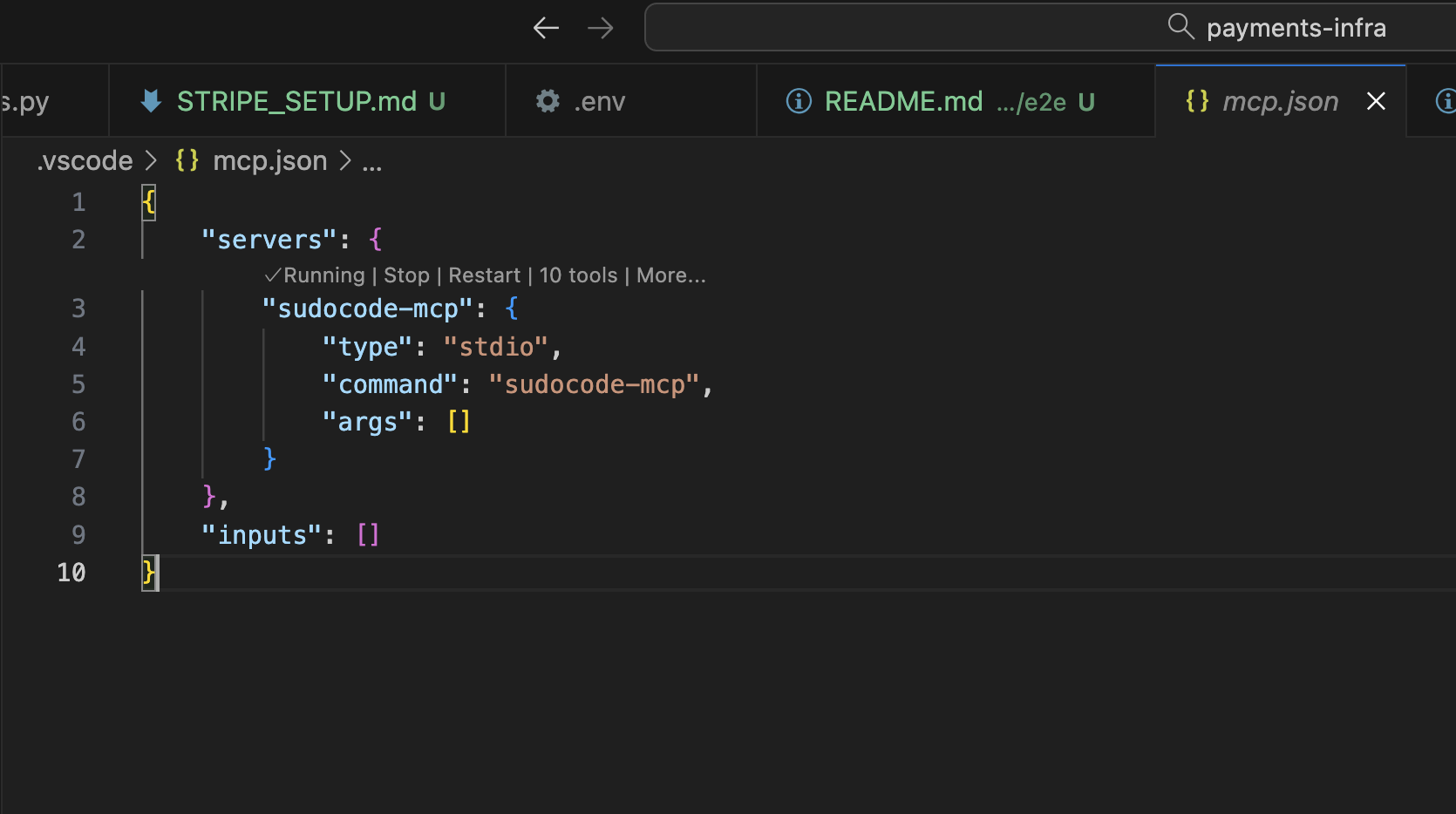
.vscode/mcp.json was created in your project root:Method 2: Manual Configuration
Method 2: Manual Configuration
If you prefer to configure manually or want to automate setup:
1
Create or update configuration
Run this command in your project root to create/update the MCP configuration:
What this command does
What this command does
- Creates
.vscode/directory if it doesn’t exist - If
mcp.jsonexists, usesjqto add the sudocode-mcp server - If
mcp.jsondoesn’t exist, creates it with the sudocode-mcp configuration - Preserves any existing MCP servers in the file
Note: This command requires
jq (JSON processor). Install it with:- macOS:
brew install jq - Ubuntu/Debian:
sudo apt-get install jq - Other: See jq installation
2
Alternative: Create file manually
Or simply create
.vscode/mcp.json with this content:3
Reload VS Code
Reload VS Code to apply the configuration:
- Press
Cmd+Shift+P(macOS) orCtrl+Shift+P(Windows/Linux) - Select “Developer: Reload Window”
Verify Setup
Test that MCP tools are available in VS Code:1
Test sudocode integration
Open Github Copilot, and just ask:
You should see a tool call like the one below. You should be all set!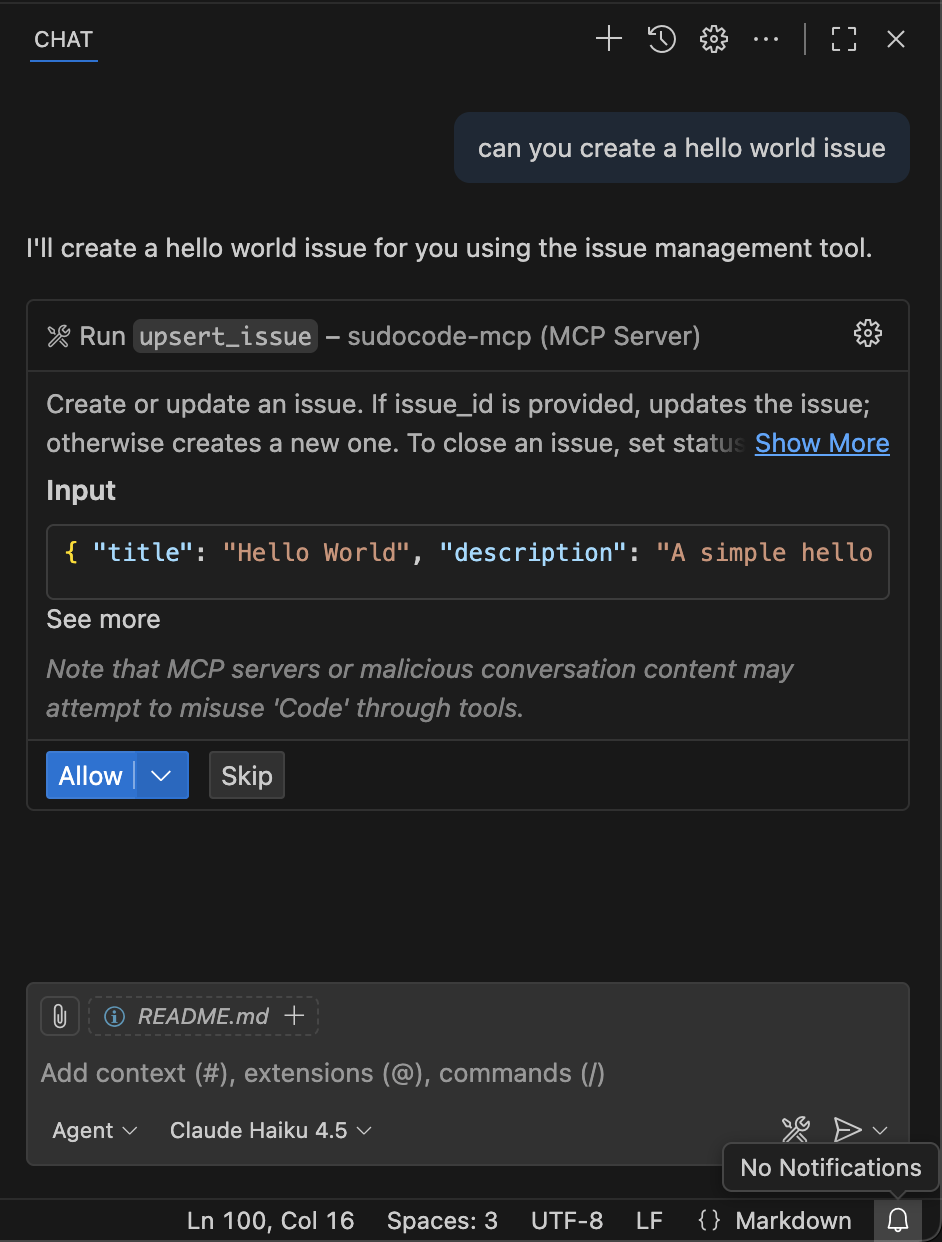
Other MCP-Compatible Agents
For any MCP-compatible AI agent, you can configure the sudocode MCP server manually:1
Locate your agent's MCP configuration
Find where your agent stores MCP server configuration. This is typically in:
- A config file (JSON, YAML, or TOML)
- Application settings UI
- Command-line arguments
2
Add sudocode MCP server
Add the following configuration to your agent’s MCP servers:JSON format:YAML format:
Remember that this MCP configuration needs to be placed at the root of your project directory.
3
Restart your agent
Restart your AI agent to load the MCP server configuration.
4
Verify the integration
Test by asking your agent to interact with sudocode:If you see Claude using tools like
plugin:sudocode:sudocode - upsert_issue, the setup is working!Troubleshooting
Command not found: sudocode-mcp
Command not found: sudocode-mcp
Cause: sudocode CLI not installed or not in PATHSolution:
- Install sudocode globally:
- Verify installation:
- If still not found, check your PATH includes npm global bin:
MCP tools not showing up in agent
MCP tools not showing up in agent
Cause: MCP server not configured correctly or agent not restartedSolution:
- Verify MCP configuration in your agent’s settings
- Ensure
commandis set tosudocode-mcp - Restart your agent completely
- Check agent logs for MCP server errors
Error: Database not found
Error: Database not found
Cause: Project not initializedSolution:
- Verify your project has
.sudocode/directory: - Initialize if needed:
Tools return stale or empty data
Tools return stale or empty data
Cause: Database not synced after git operationsSolution:
- Manually sync:
- Check that
.sudocode/cache.dbexists and is not corrupted
Permission denied errors
Permission denied errors
Cause: MCP server can’t access project filesSolution:
- Check directory permissions:
- Ensure
.sudocode/directory is readable and writable - Verify the user running your agent has file access
- On macOS, check System Settings → Privacy & Security
Plugin install fails (Claude Code)
Plugin install fails (Claude Code)
Cause: Plugin not found in marketplace or network issueSolution:
- Verify you added the marketplace source:
- Check network connectivity
- Check Claude Code logs for detailed errors
What’s Next?
After setting up your agent, explore these resources:MCP Tools Reference
Learn about all 10 MCP tools available to your agent
Agent Workflows
See practical workflow examples for AI agents
Quick Start Guide
Create your first spec and issue
Core Concepts
Understand specs, issues, and relationships
Need help with a specific agent? Open a discussion and let us know which agent you’re using. We’ll prioritize documentation based on community needs!