

What are Workflows?
Workflows in sudocode allow you to execute multiple issues in their dependency order. Just specify a spec, a root issue, or manually select issues to run as a coordinated workflow. sudocode ensures all dependencies are respected and handles the execution order automatically.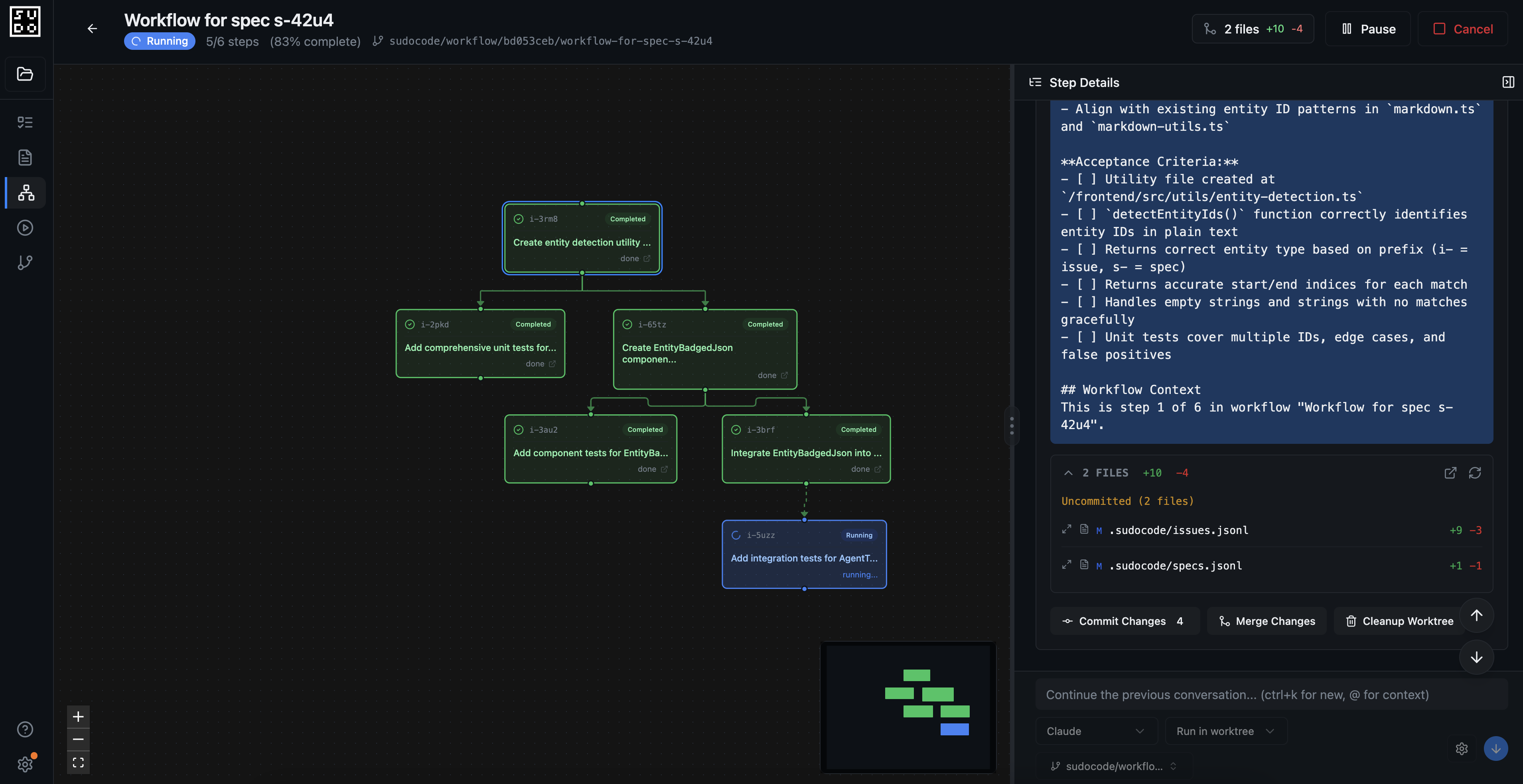
Example: Implementing Execution Badges
Let’s walk through a complete example of how to combine spec-driven development with workflows to implement a new feature in sudocode.The Goal
We want to add badges to sudocode execution chats. When chatting with sudocode during an issue execution, users should see visual badges showing all the specs and issues that have been created or modified throughout the session. This provides better context awareness and helps track what the agent has been working on.Phase 1: Create and Refine the Spec
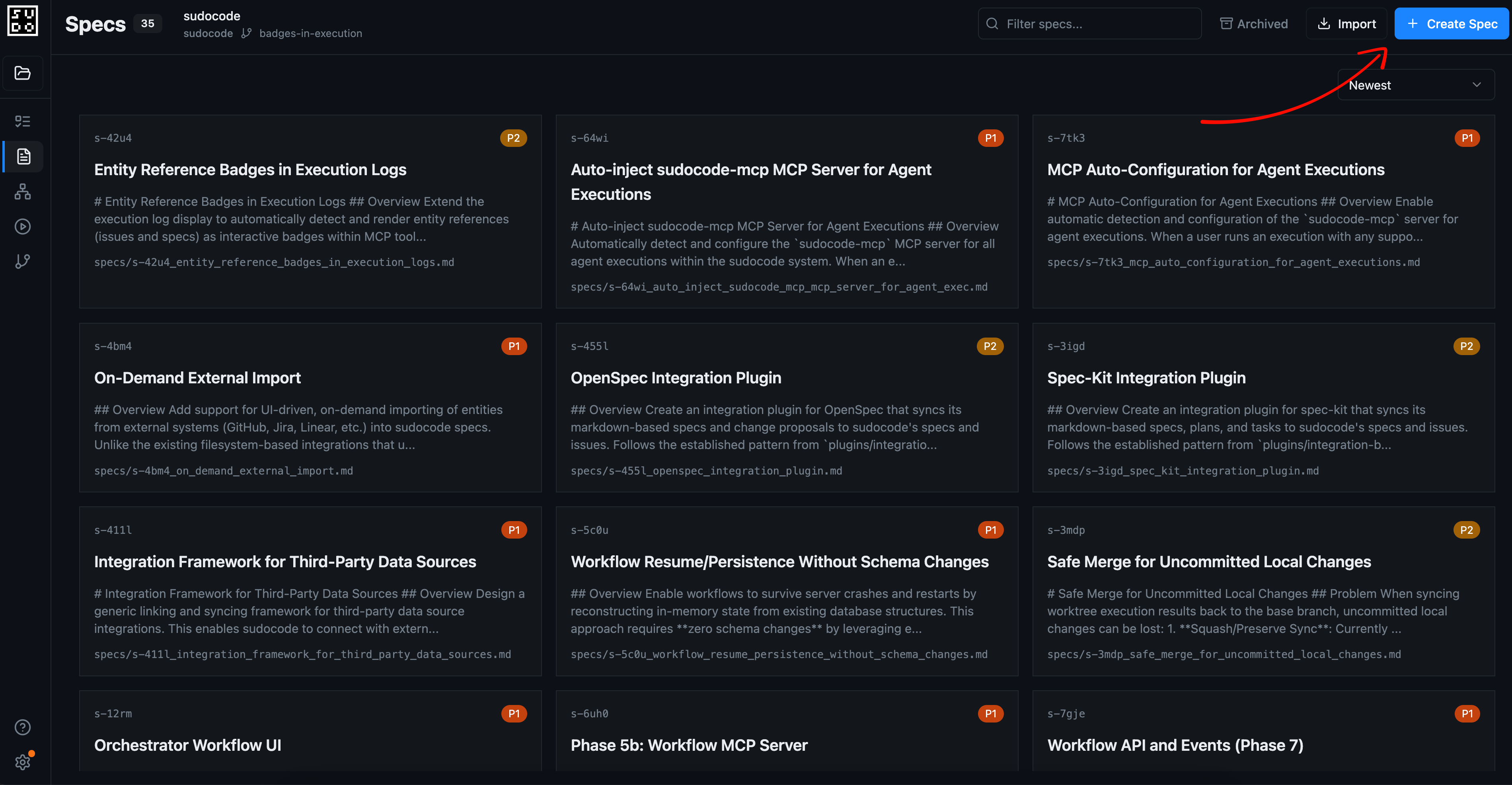
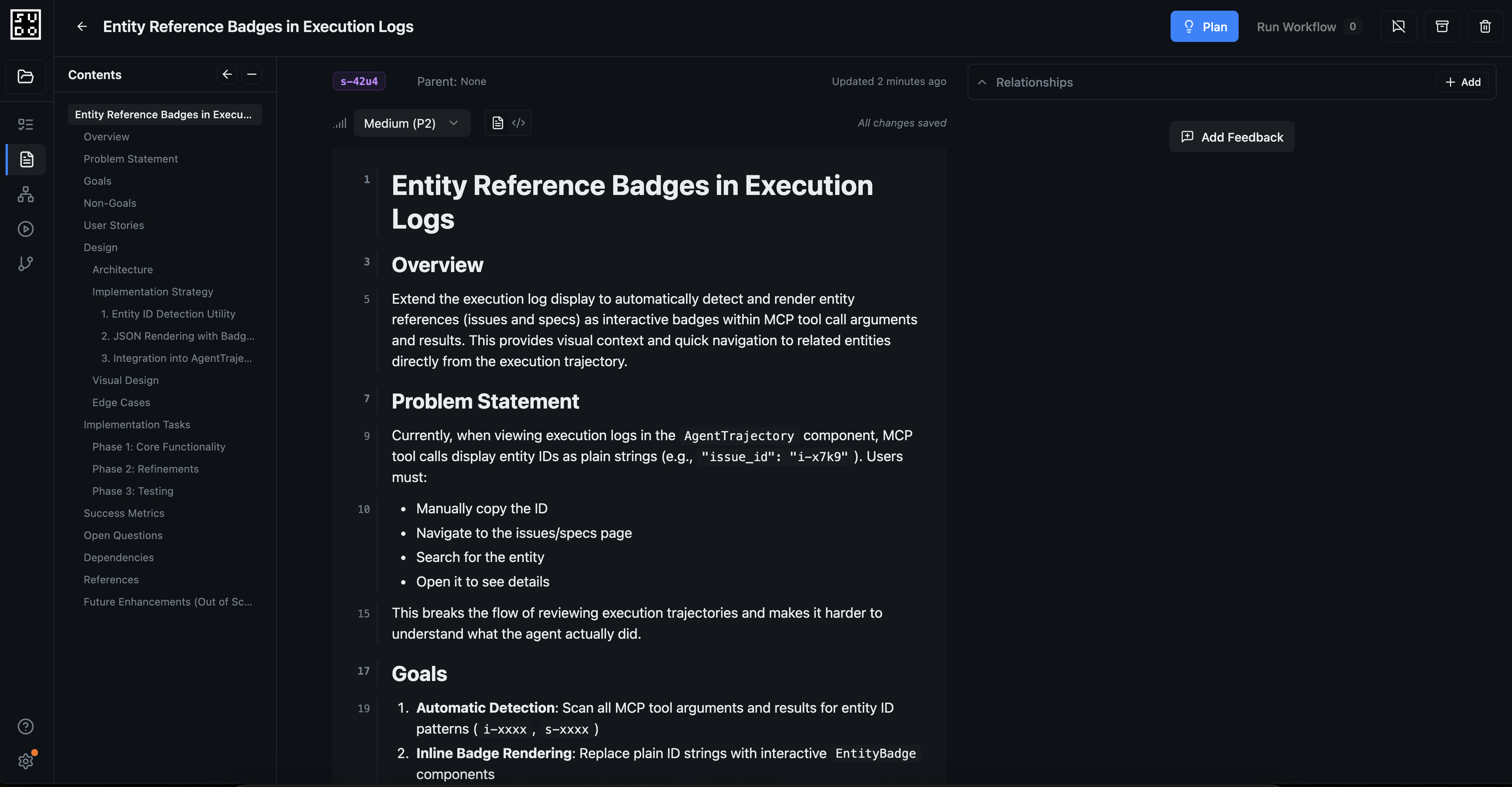
Step 1: Create a new spec Navigate tolocalhost:3000 and click the “Create Spec” button to start defining your feature.
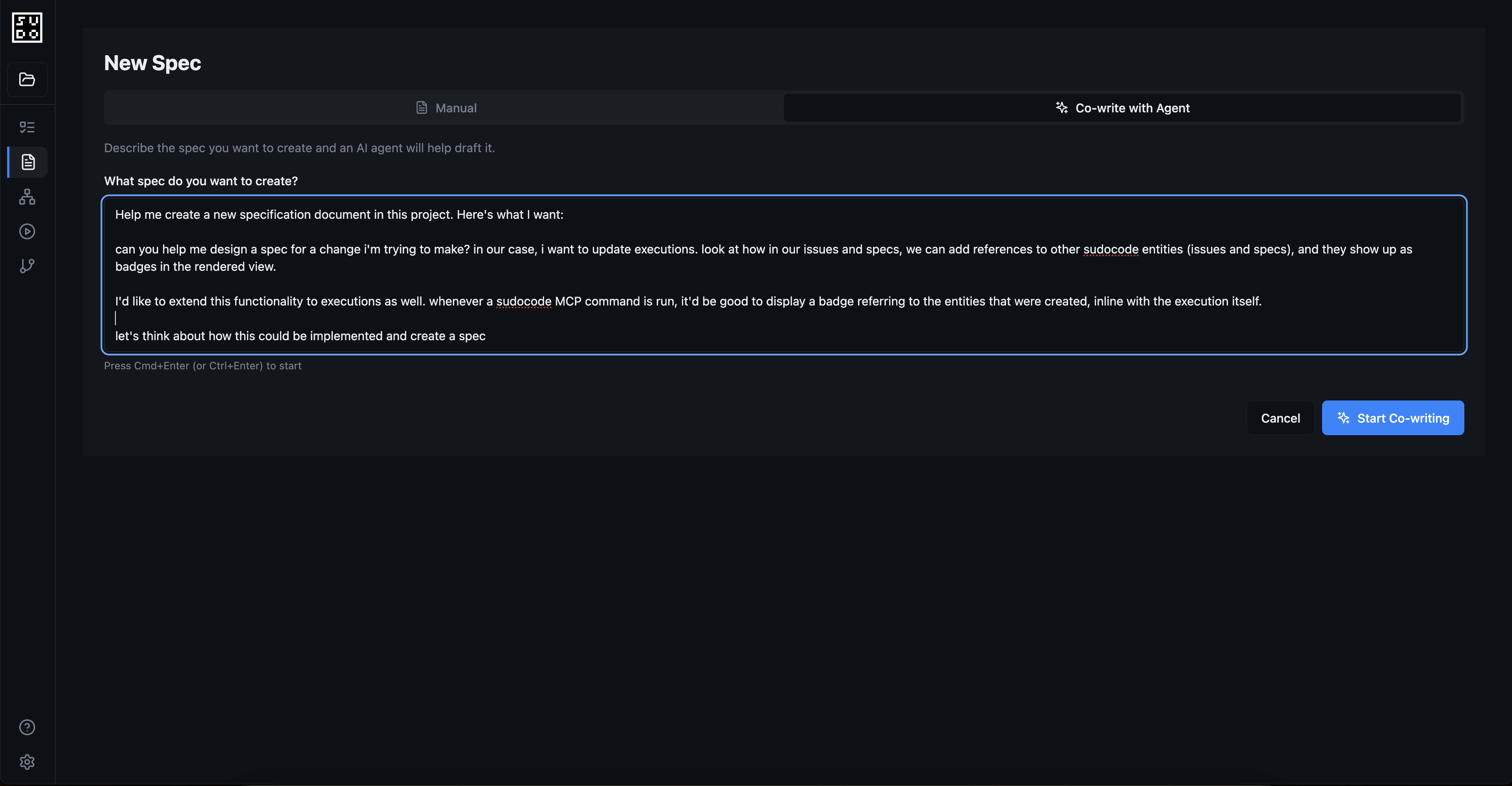
- User-facing behavior (what badges should show)
- Technical requirements (which entities to track)
- UI/UX considerations (badge placement, styling)
- Success criteria (how to validate it works)
- Abstractions (what interfaces will be modified as an outcome)
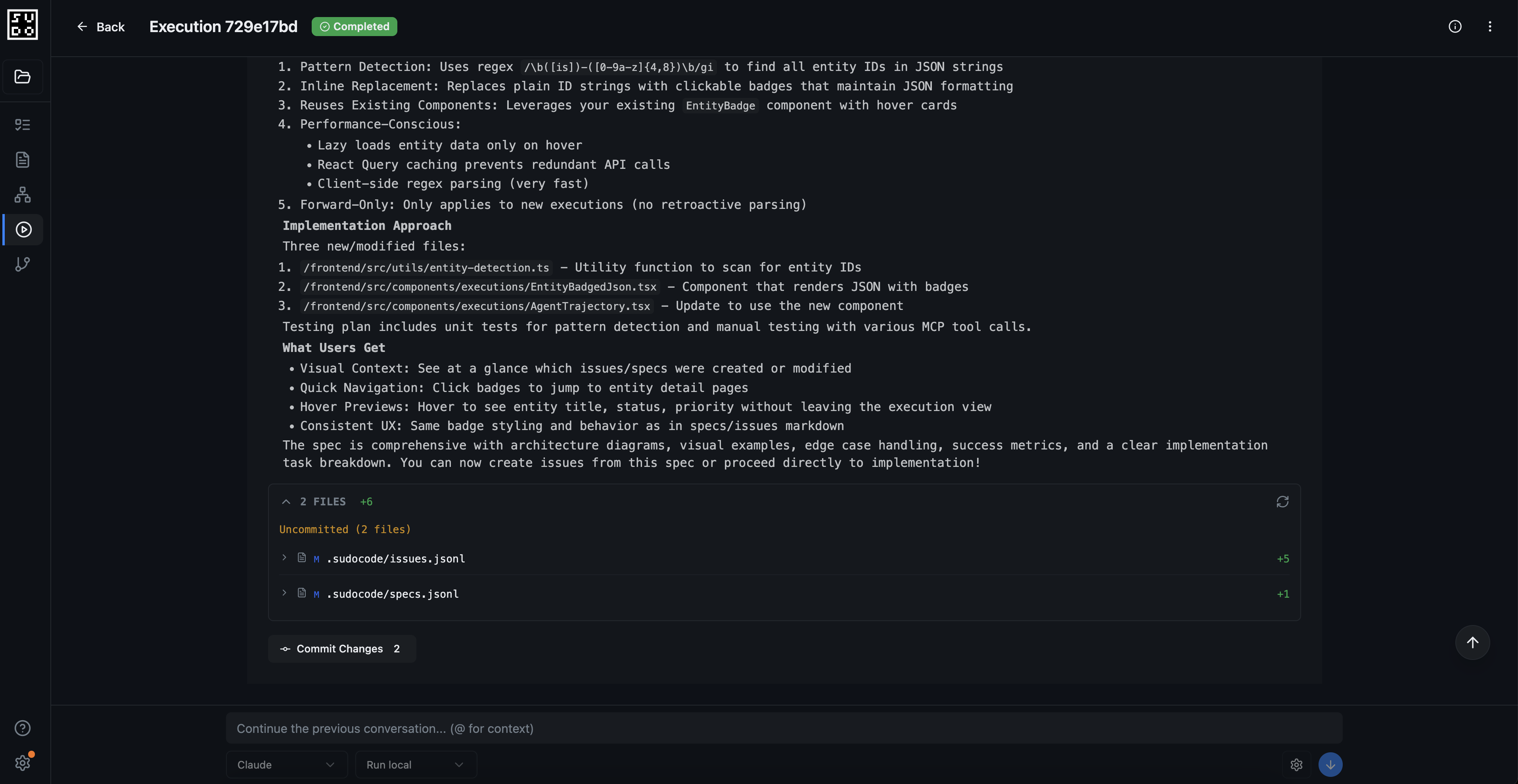
- Identify missing requirements
- Suggest implementation approaches
- Consider edge cases
- Define acceptance criteria
Phase 2: Plan Implementation
Step 5: Generate implementation plan Once your spec is ready, click “Plan Implementation” to have sudocode break down the spec into actionable issues.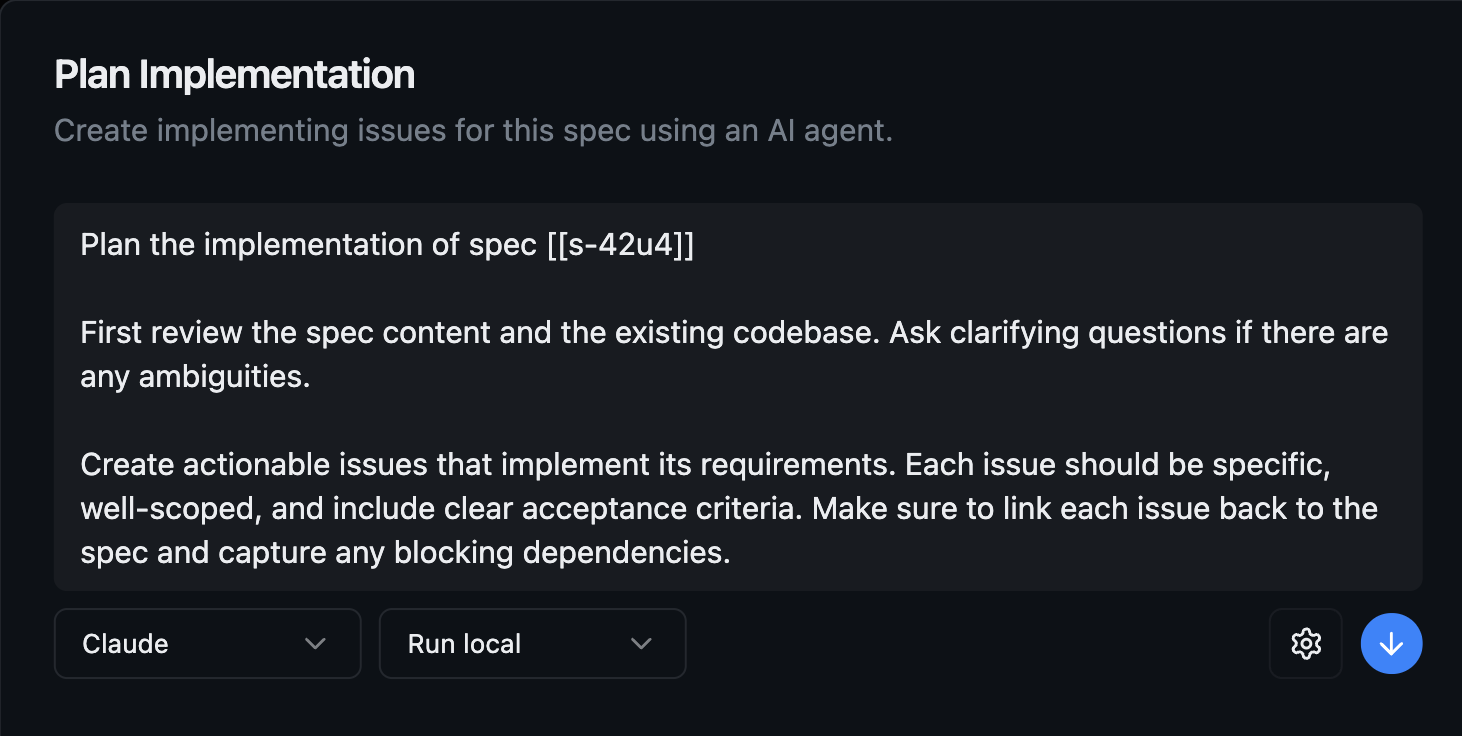
- Individual issues for each component or step
- Dependency relationships between issues and specifications
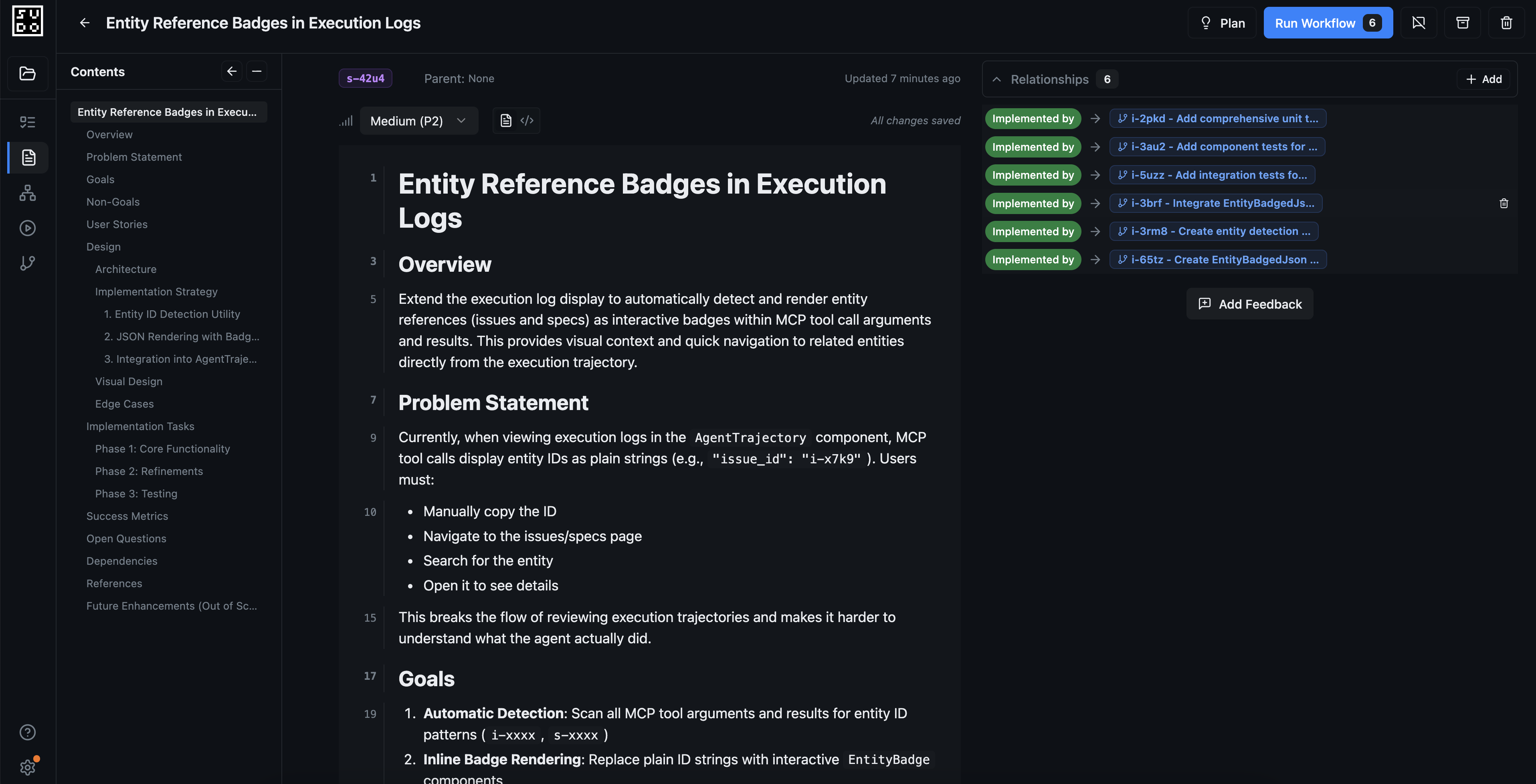
- Clear description of what needs to be implemented
- Links to the parent spec
- Dependency relationships with other issues
Phase 3: Execute the Workflow
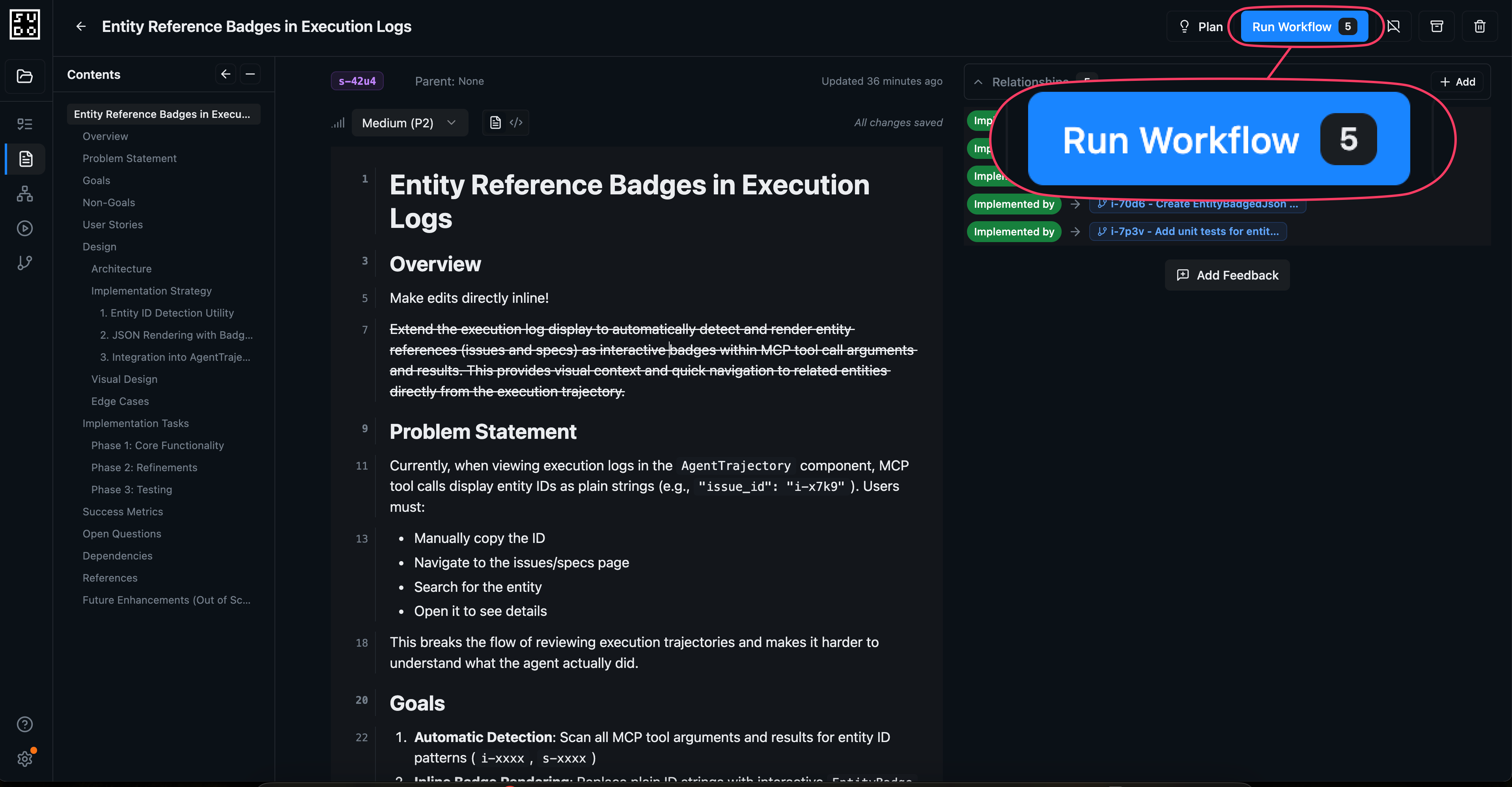
Step 8: Configure workflow execution The workflow creation screen lets you choose which issues to run and how to execute them.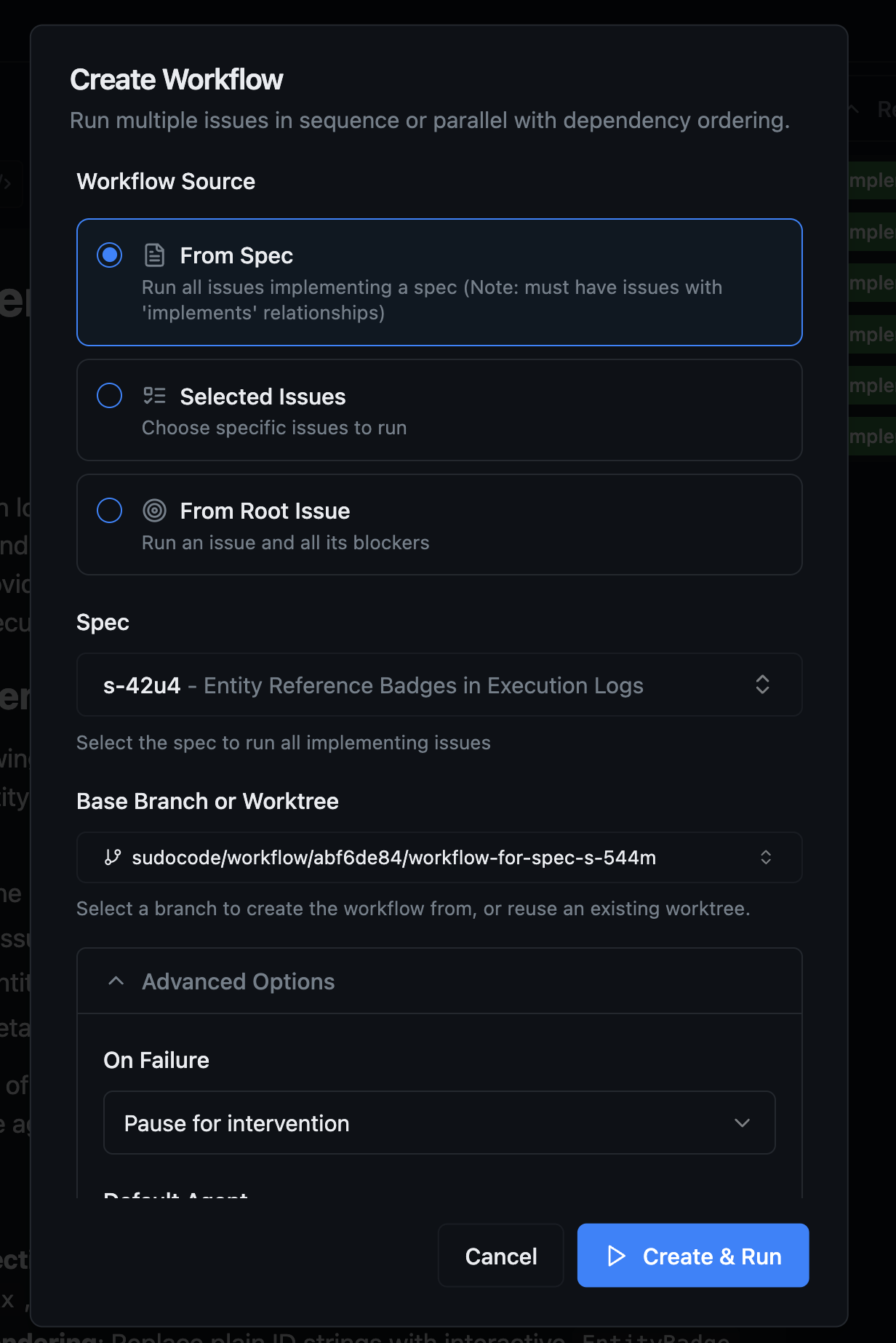
- Select specific issues to include
- Choose to run from a spec (runs all implementing issues)
- Choose to run from a root issue (runs all blocking dependencies)
- Review the execution order before starting
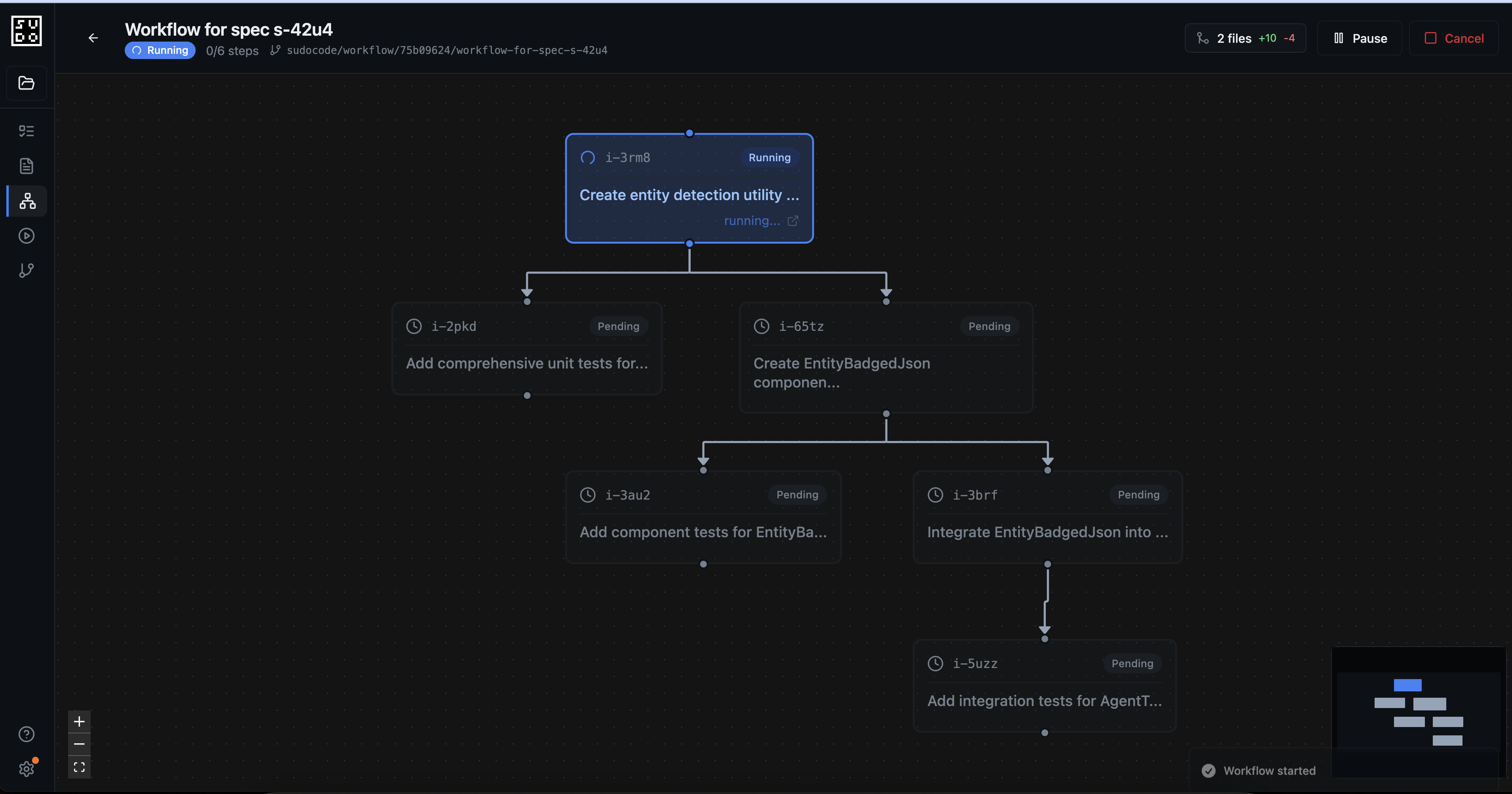
- Issues with no blockers start immediately
- Subsequent issues automatically start when dependencies complete
- Each issue runs in an isolated worktree
- You can click any issue to view its progress and agent conversation
- Real-time status updates show what’s being worked on
Phase 4: Review and Merge Changes
Step 10: Review workflow changes When the workflow completes, you can review all the changes that were made across all issues.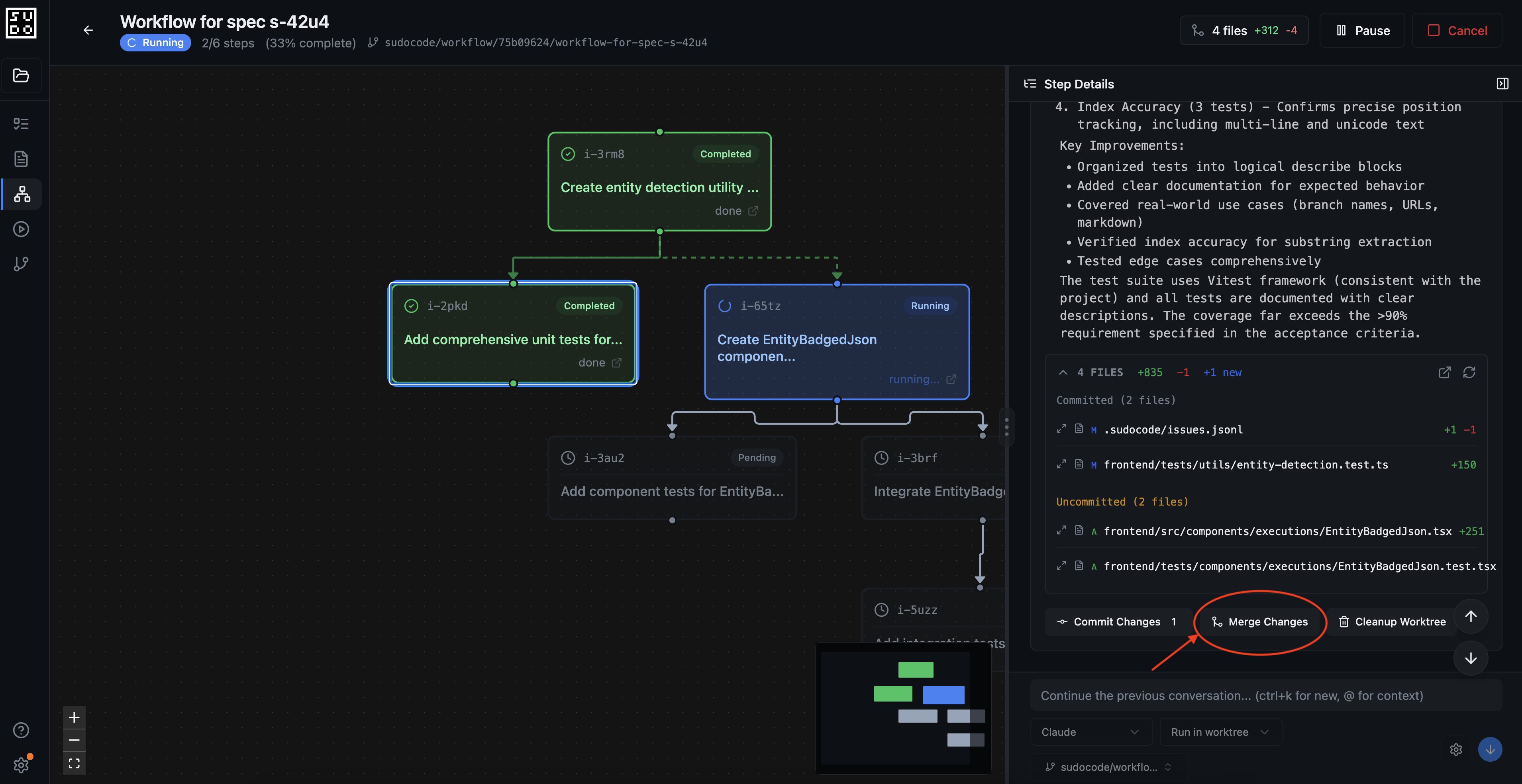
- All completed issues
- Files modified by each issue
- Full diff of changes
- Test results and validation
- Agent decisions and implementation notes
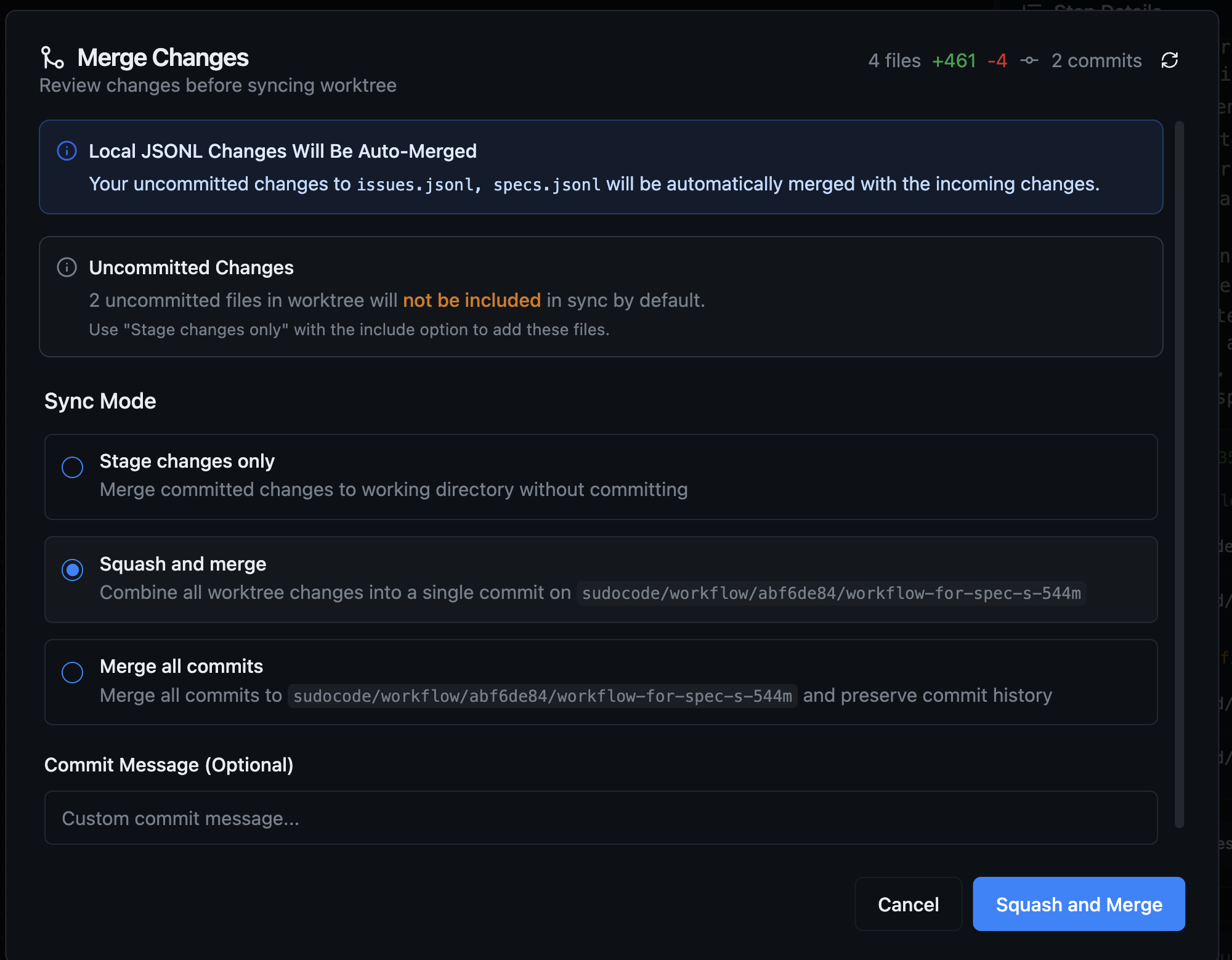
- All commits from the workflow worktree are merged into your main branch
What just happened?You successfully implemented execution badges using a complete spec-driven workflow:
- Created a spec collaboratively with an agent
- Refined the requirements through conversation
- Generated an implementation plan with dependency-ordered issues
- Executed all issues in an automated workflow
- Reviewed and merged the complete implementation
Benefits of Workflows
Automated Coordination
No manual orchestration needed
- sudocode handles execution order
- Parallel work runs concurrently
- Dependencies respected automatically
- Hands-off execution
Isolated Execution
Safe, conflict-free processing
- Each issue in separate worktree
- No interference between agents
- Easy rollback per issue
- Clean merge points
Visibility
Track progress in real-time
- See all issues in workflow
- Monitor agent decisions
- Review files as they’re modified
- Understand implementation choices
When to Use Workflows
Workflows are ideal for:- Feature development from specs: Break down specs into coordinated implementation steps
- Multi-component features: UI → logic → API → testing phases that depend on each other
- Refactoring projects: Multiple coordinated code changes across related files
- Multi-step bug fixes: Test writing, strategy planning, implementation, validation
- Migration tasks: Sequential steps with clear dependencies
- Single, standalone issues with no dependencies
- Exploratory work without clear structure
- Tasks requiring frequent human decision-making between steps
Best Practices
Start with a clear spec
Start with a clear spec
Begin your workflow by creating a detailed spec collaboratively with an agent. A good spec should include:Essential elements:
- Clear user-facing behavior description
- Technical requirements and constraints
- UI/UX considerations
- Success criteria and acceptance tests
- Edge cases and error handling
- Agents can generate better implementation plans from detailed specs
- Issues created from specs have clearer scope and dependencies
- You catch requirement gaps before implementation starts
- The spec serves as documentation for the feature
Let sudocode plan the implementation
Let sudocode plan the implementation
Use the “Plan Implementation” feature to automatically break down specs into issues rather than creating issues manually.Benefits:
- Automatically generates dependency relationships
- Creates focused, single-responsibility issues
- Ensures nothing from the spec is missed
- Saves time compared to manual planning
Run workflows from specs
Run workflows from specs
When starting a workflow, select “From Spec” to run all implementing issues in dependency order.Why this works:
- The workflow engine automatically identifies all issues that implement the spec
- Dependencies are traced and respected
- You get a complete implementation without manual coordination
- All work is tracked back to the original spec
Review before merging
Review before merging
Always review worktree changes before merging into your main branch.What to check:
- Implementation matches spec requirements
- All issues completed successfully
- Tests are passing
- No unintended side effects
- Code quality meets standards
- Agent decisions make sense
Troubleshooting
Merge conflicts in issues.jsonl or specs.jsonl
Merge conflicts in issues.jsonl or specs.jsonl
Cause: Multiple worktrees modified the same issues or specsSolution:The
resolve-conflicts command automatically handles concurrent modifications to sudocode metadata files.Workflow stuck: Issue not progressing
Workflow stuck: Issue not progressing
Cause: Agent encountered an error or needs human inputSolution:
- Click on the stuck issue to view details
- Review the agent conversation to identify the blocker
- If the agent needs clarification, provide it in the issue chat
- If the agent errored, you can restart the issue or manually fix and continue
Want to cancel a running workflow
Want to cancel a running workflow
Cause: Need to stop execution due to errors or changed requirementsSolution:
Simply press Cancel and start a new workflow! You can remove your existing workflow and worktree as needed.Cancelled workflows don’t affect your main branch since work is isolated in worktrees.
Related Documentation
Spec-Driven Development
Complete tutorial on spec-driven workflows
Web UI Overview
Complete web interface guide
Understanding Relationships
How specs, issues, and dependencies connect