

Overview
The sudocode web server provides a visual Kanban-style interface for managing issues. Unlike spec creation (which currently lives in the MCP server), issue management is fully supported in the web interface.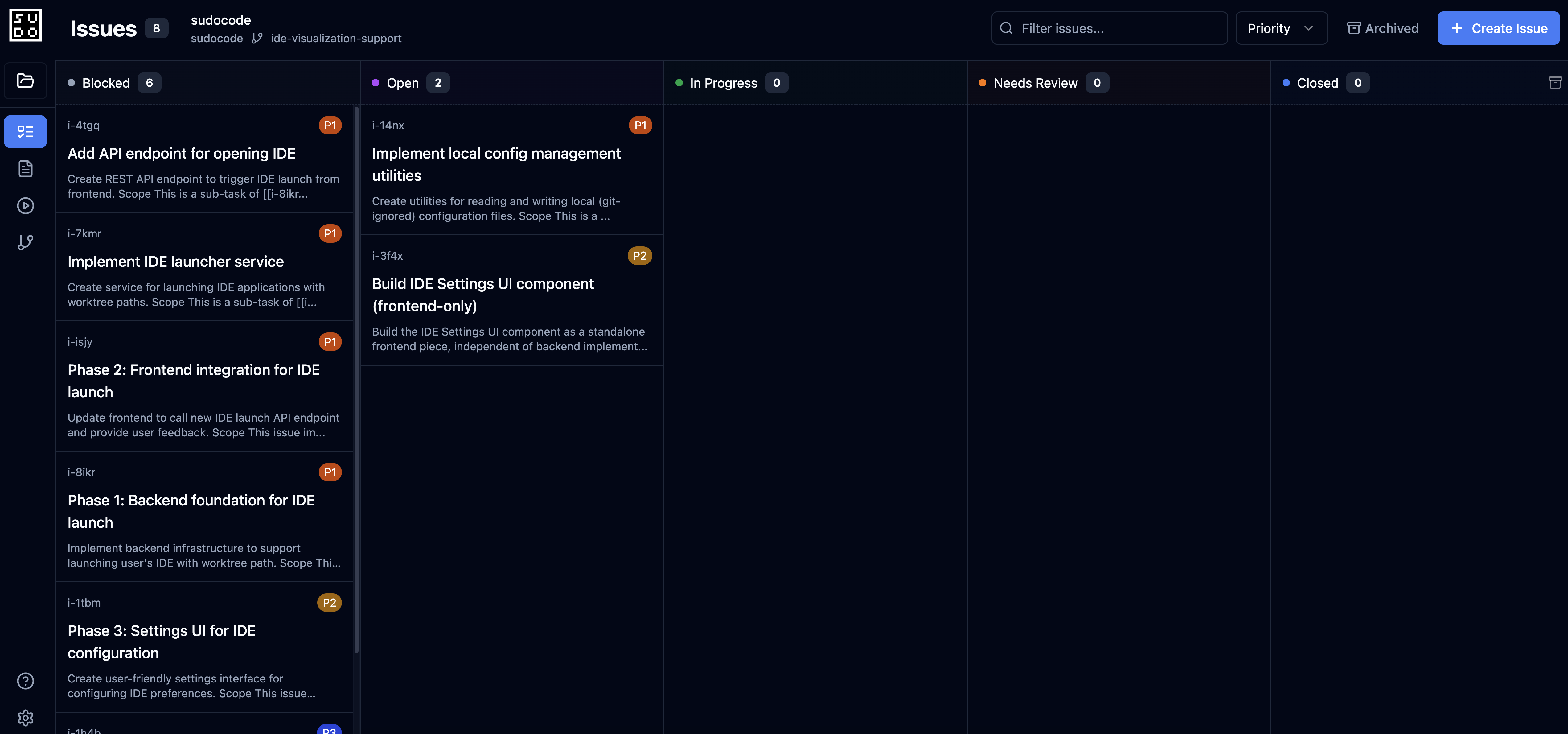
Issue Board
The issue board shows all your issues organized by status:- Open - Ready to work on (no blockers)
- In Progress - Currently being worked on
- Blocked - Waiting on dependencies
- Closed - Completed
Drag and Drop
Simply drag issues between columns to update their status:.sudocode/issues/ files.
Filtering and Search
Use the filter controls to focus on specific work:- Priority: Filter by priority level (0-4)
- Tags: Show only issues with specific tags
- Search: Search issue titles and descriptions
- Assignee: Filter by who’s working on what
Issue Creation
The current recommended way to create issues is through AI agents using the MCP server:Issue Creation via MCP
Learn how agents create and manage issues
- Creating new issues with
upsert_issue - Setting priority, status, tags, and descriptions
- Linking issues to specs they implement
- Creating parent-child issue relationships
Web-based issue creation is in development. For now, use the MCP server or CLI for creating issues, and the web interface for managing and dispatching them.
Issue Linking
Connecting issues to specs and other issues is done through the MCP server:Creating Relationships
Learn how to link issues using the MCP server
link tool creates relationships between entities:
Common relationship types:
implements- Issue implements a spec or another issueblocks- Issue must complete before another can startdepends-on- Issue depends on another completing firstrelated- General relationship between entities
Web-based issue linking is in development. For now, use the MCP server or CLI for linking issues, and the web interface for managing and dispatching them.
Dispatching Issues to Agents
Dispatch agents directly through the web-server, with the click of a button.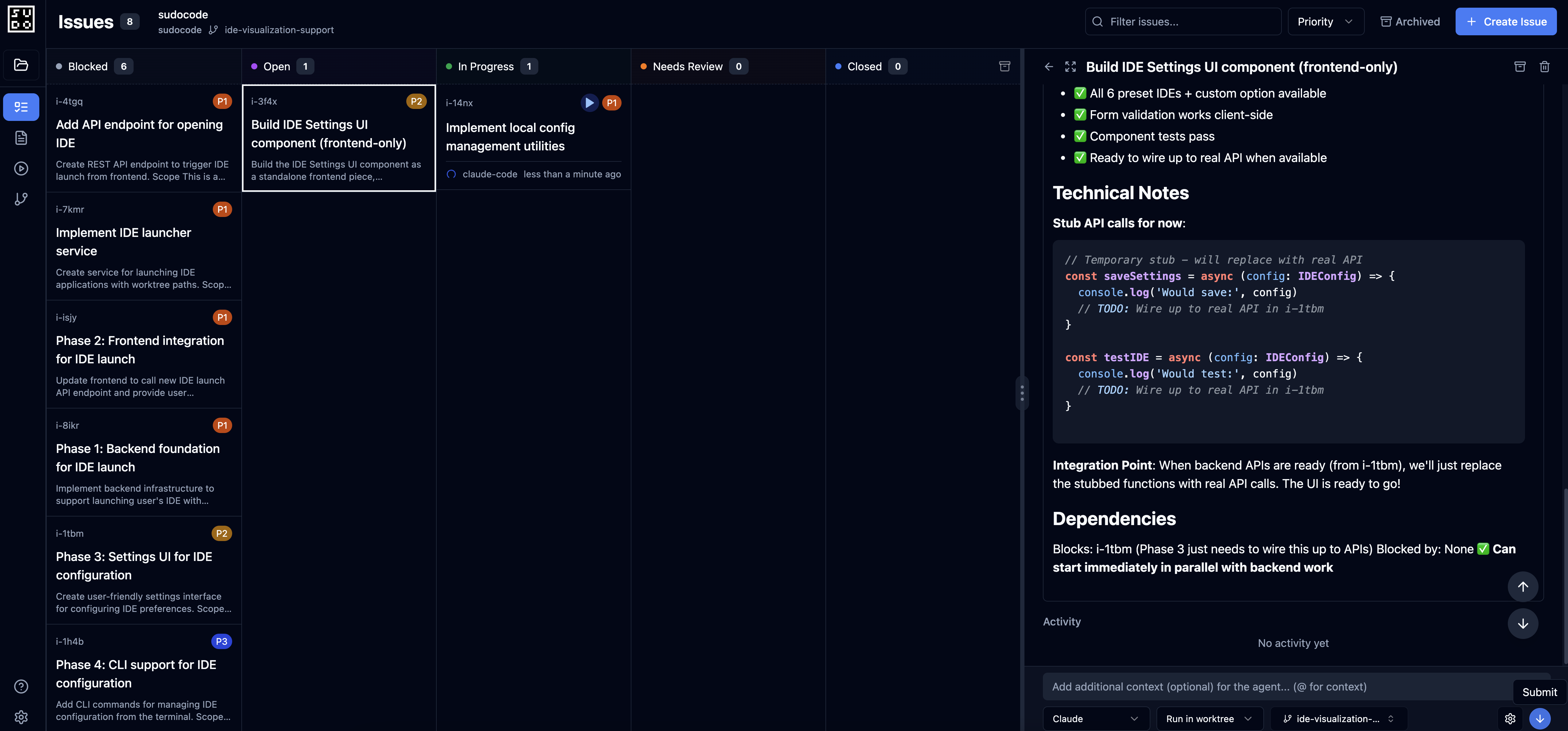
How It Works
The dispatch workflow is simple and visual:- Click an Issue: Select any issue from the Kanban board to view its details in the right panel
- Configure Agent: Choose your agent (Claude, custom agent, etc.) from the dropdown
- Configure Branch: Have the agent run from a worktree (default) or from your local project directory.
- Add Context (Optional): Provide additional instructions or context for the agent
- Press Enter or Click Start: Launch the agent - it starts working immediately in the specified environment.
Running Multiple Issues Simultaneously
The real power comes from parallel execution:1
Select First Issue
Click an issue and hit “Run in worktree” - the agent starts working
2
Select Next Issue
Immediately select another ready issue (no blockers)
3
Launch Another Agent
Click Run again - a second agent starts in parallel
4
Monitor All Agents
Watch the “Activity” section on each issue to see real-time progress across all running agents
- Each agent can work in its own isolated worktree (no conflicts)
- Run as many agents as you want in parallel
- Web server coordinates and monitors all agents
- Real-time updates show progress across all work
- Agents automatically provide feedback when complete
Agent Worktrees
When you click “Run in worktree”, the web server:- Creates an isolated git worktree for the agent
- Launches the agent with MCP access to the sudocode database
- Provides the issue context and any additional instructions
- Monitors the agent’s progress in real-time
- Collects feedback when the agent completes
Issue Details
Click any issue to see full details:- Description: Full markdown content
- Implements: Which spec(s) and issue(s) this issue implements
- Blocked By: Dependencies that must complete first
- Blocks: Issues waiting on this one
- Feedback: Agent feedback from implementation
- Related: Connected issues and specs
Best Practices
Link Issues to Specs
Link Issues to Specs
Issues can implement specs. Use the
implements relationship to connect them.Define Dependencies Clearly
Define Dependencies Clearly
Use
blocks and depends-on relationships to establish work order. This helps the ready command show only unblocked work. Use the MCP server to manage these links.Keep Issues Focused
Keep Issues Focused
Each issue should be a single, completable unit of work. Break large features into multiple issues.
Review Agent Feedback
Review Agent Feedback
When agents complete issues, they provide feedback on the spec. Review this to improve future specs.
Workflow Example
Here’s a typical workflow using the web interface:1
View Ready Work
Open the web interface and see all ready (unblocked) issues
2
Select an Issue
Choose an issue to work on based on priority and dependencies
3
Dispatch to Agent
Click the Run button and configure which agent should work on it
4
Monitor Progress
Watch real-time updates as the agent works
5
Review Results
When complete, review the agent’s implementation and feedback
6
Merge or Iterate
Either merge the issue results or continue the conversation with the agent to guide it further
Real-Time Sync
The web server provides real-time updates via WebSockets:- See changes as agents work
- File watcher detects external edits (CLI, direct file edits)
- Automatic sync across all connected browser clients
- No manual refresh needed
Next Steps
Issue Creation via MCP
Learn how agents create issues
Feedback Workflows
Manage and review agent feedback
CLI Issue Commands
Use the command-line interface
Core Concepts: Issues
Understand issue fundamentals