

Spec Writing & Updating
Specs are a powerful way for users to express intent for what they are trying to build.Step 1: Create a Spec
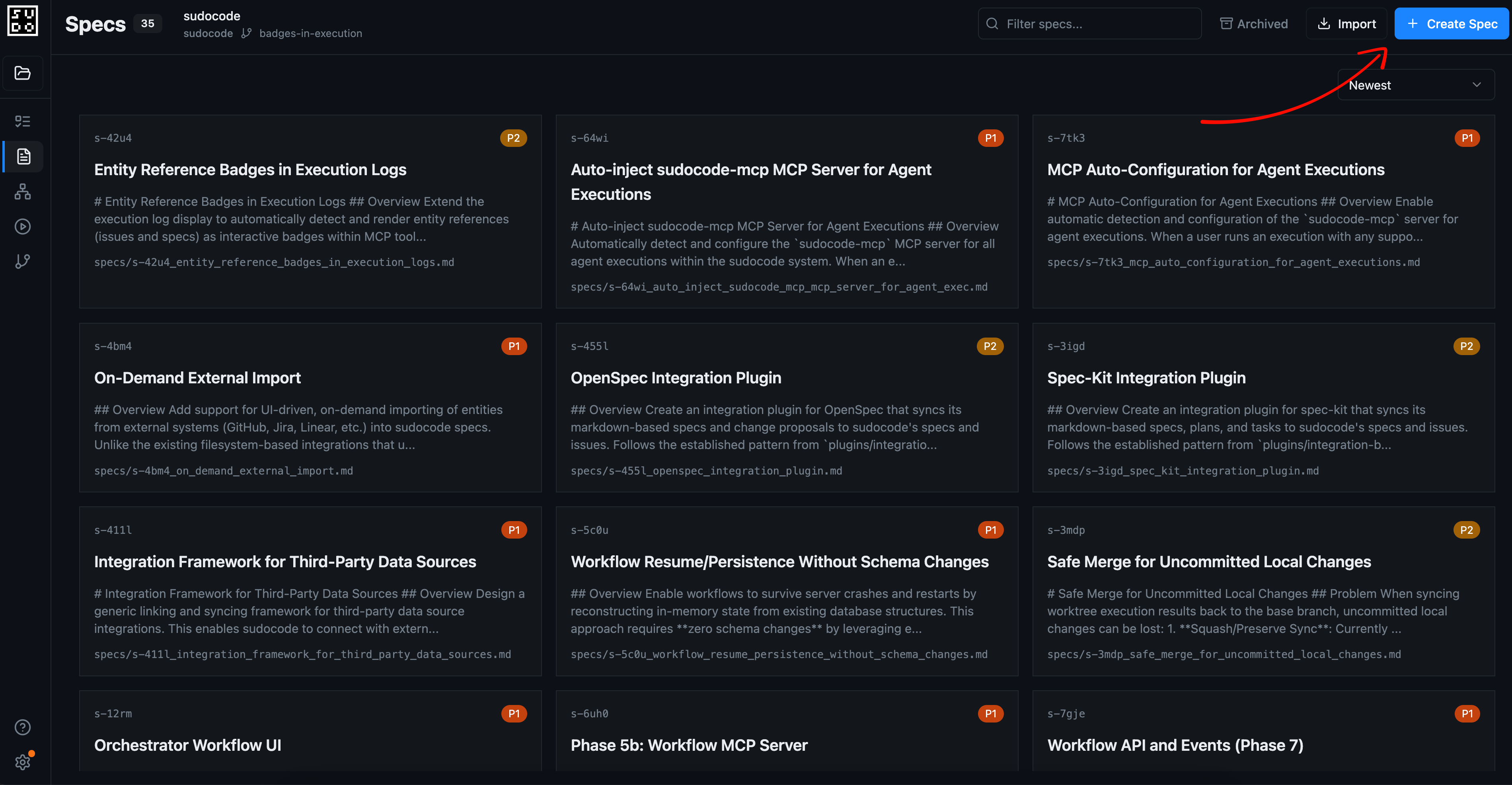
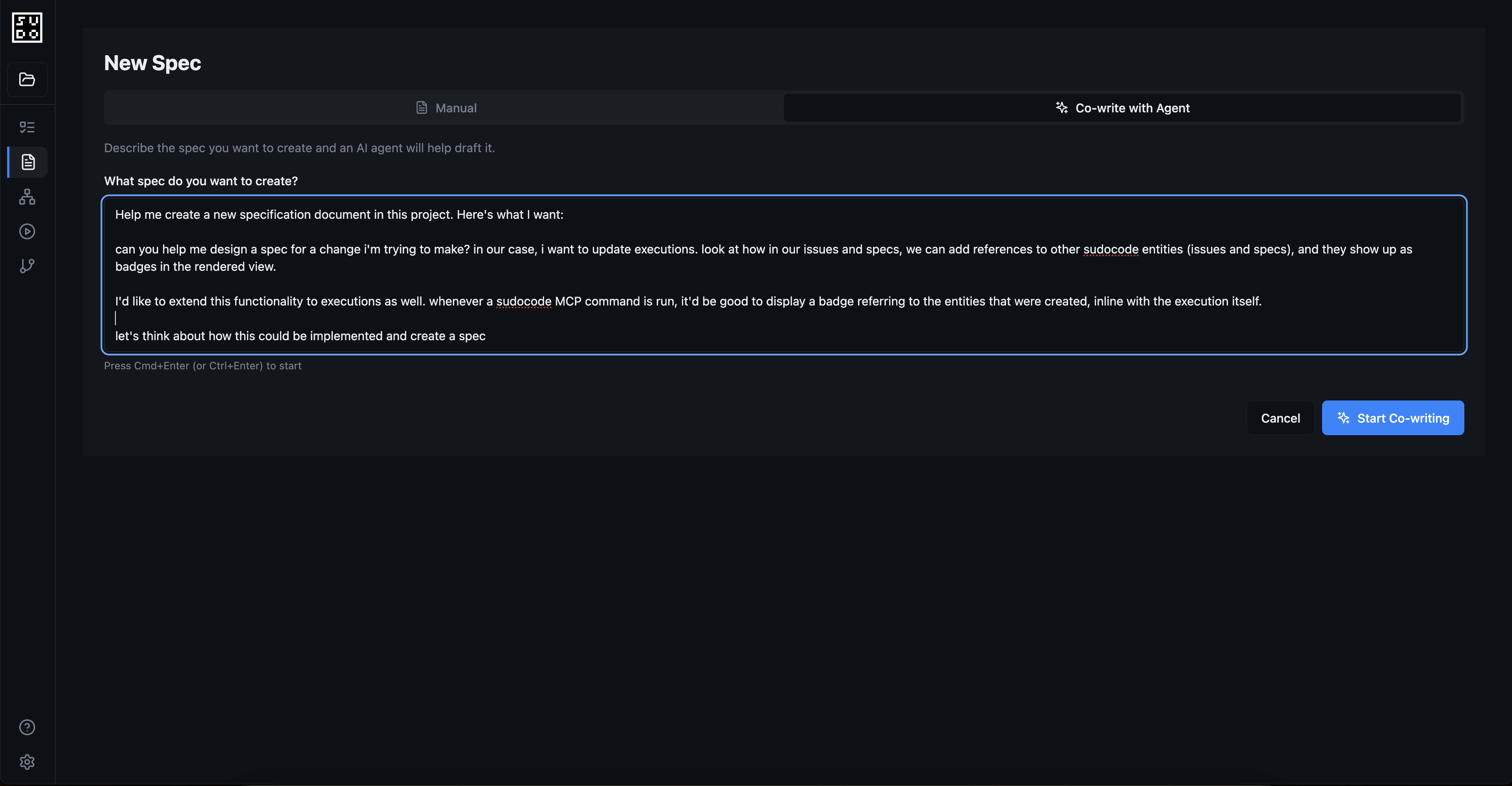
Step 2: Direct Edit, Co-edit, and Plan Implementation
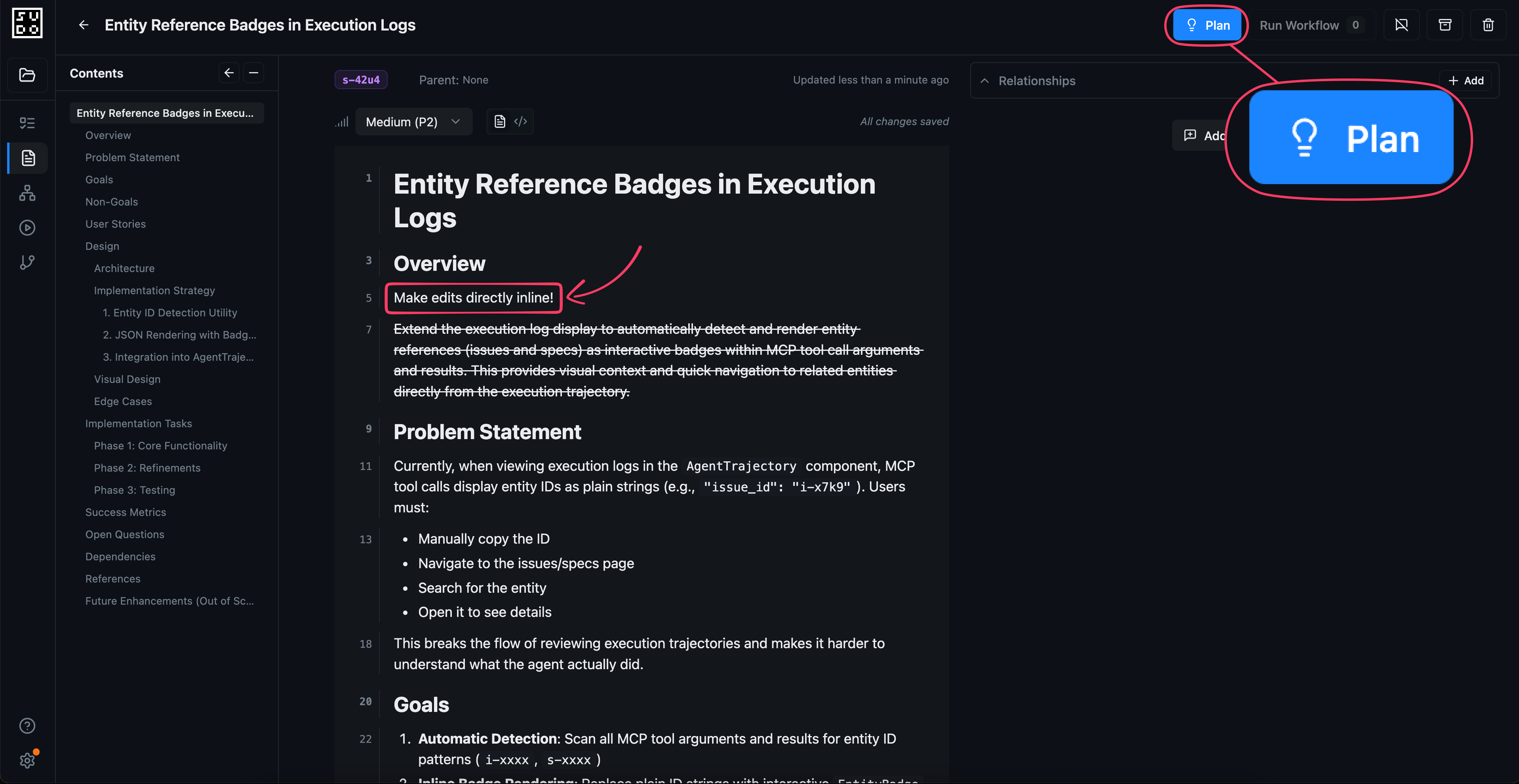
Once you create your spec, you’ll be able to:- View and edit rendered markdown directly
- Navigate between linked relationships and linked entities using
[[spec-id]]references - Co-edit specs with an agent collaboratively
- Plan and write implementation tasks with an agent
Step 3: Implement Your Spec with a Workflow
Once you’ve planned your spec’s implementation and created issues, you’ll be able to run a workflow to implement all open issues on your spec. This will dispatch a workflow agent that will spawn a series of agents to implement each task in sequential order, based on the dependencies of your issues.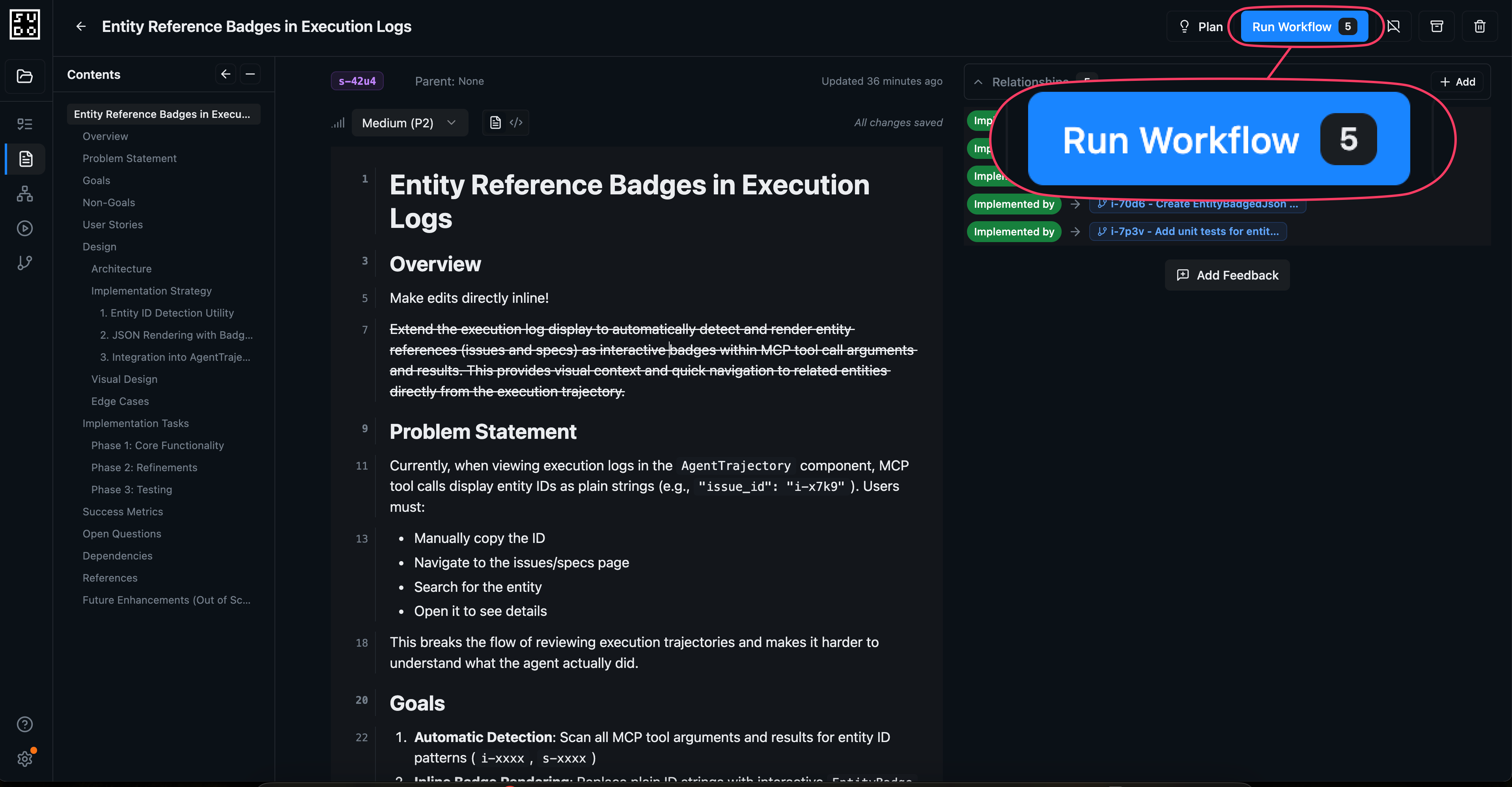
Best Practices
As you create, plan, and implement your specs, follow these best practices:Start with Clear Requirements
Start with Clear Requirements
Write specs that clearly define what should be built and why. Focus on abstractions and requirements, and less on implementation details.
Use References Liberally
Use References Liberally
Connect specs to related specs, issues, and other entities. Use the agent edit mode to discover and add references as needed.
Break Specs Down Hierarchically
Break Specs Down Hierarchically
Specs can be decomposed into smaller sub-specs. Use relationships and references to model this hierarchy for clarity.
Review Agent Feedback
Review Agent Feedback
When agents implement issues, they provide feedback about what worked and what didn’t. Use this to improve your specs over time.
Next Steps
Spec-Driven Development Tutorial
Follow a complete workflow from spec creation to implementation
Issue Management
Manage issues in the web interface
CLI Spec Commands
Use the command-line interface
Core Concepts: Specs
Understand spec fundamentals